
Working with a Schedule | Drag & Drop Options
Basic Inputs
Inventory: a list of wells, facilities, etc. that need to be scheduled and considered for capital & production forecasts
Asset template(s): templates define sets of activities, groupings and resource types required for asset development
Resources: constrained resources such as rigs and frac crews set the pace, ensuring plans are realistic. Mobilization time can be applied here
Priority: uses an attribute to set a preferred order. This can be an economic metric such as NVP, a date, or a generic list of values
Scheduling Tools
Drag & drop tools: Override Activity Dates vs Override Activity Priorities
Override Priorities or Override Dates: choose one of these tools to control what happens when you drag & drop assets in the schedule
Override Priorities: this tool allows you to reorder assets and move them to different resources. When you drag & drop using this tool, the default priority is "overridden" for that asset and all that come prior, locking them into the current order. This is typically used for scenario analysis and when setting the order for a short-term schedule.
Override Dates: this tool allows you to hard-code start dates as you move them around. This is typically used to keep history/actuals up to date, or if there's something in the very near term that needs to be fixed in place.
Once you move an asset with one of these tools, the context menu will show "overridden". This can be toggled back to "auto" at any time, and that will reset any scheduling changes made. The asset will be auto-scheduled based on asset template & default priority settings.
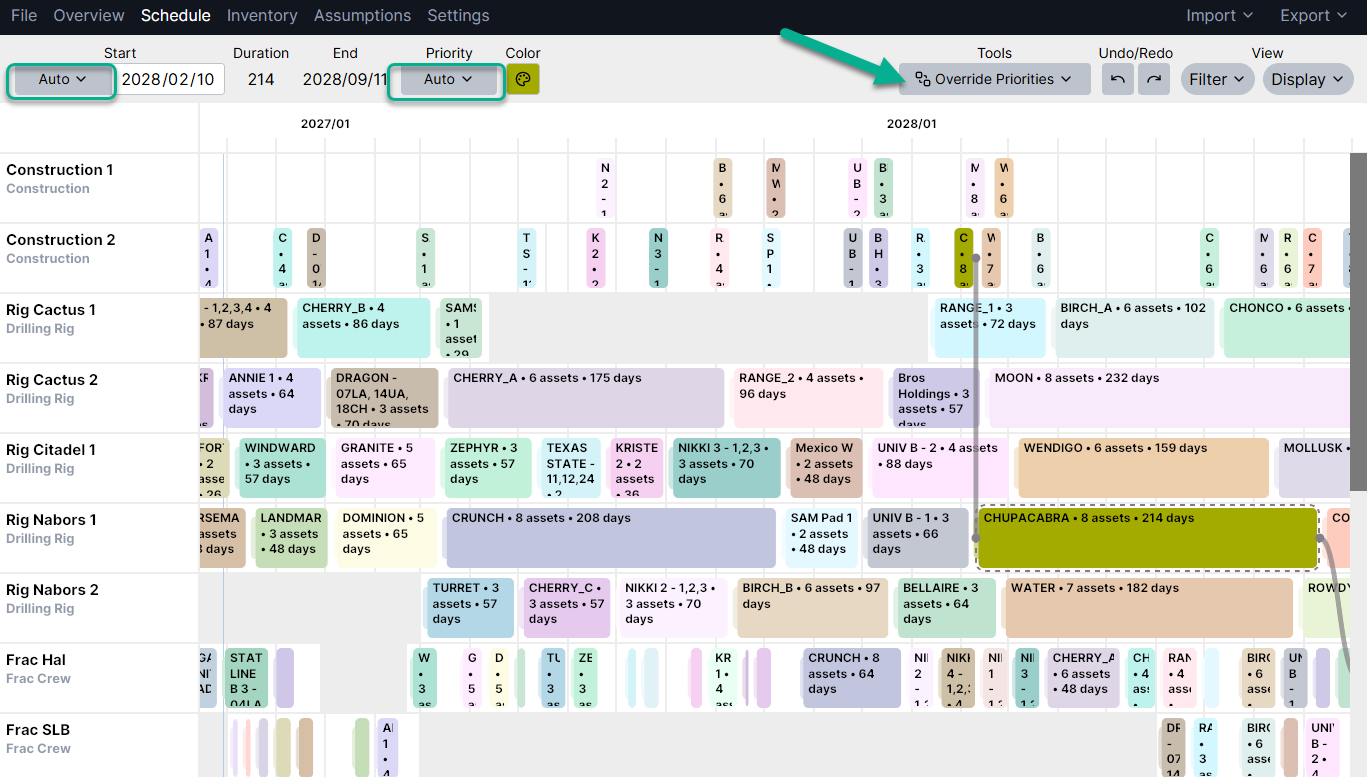
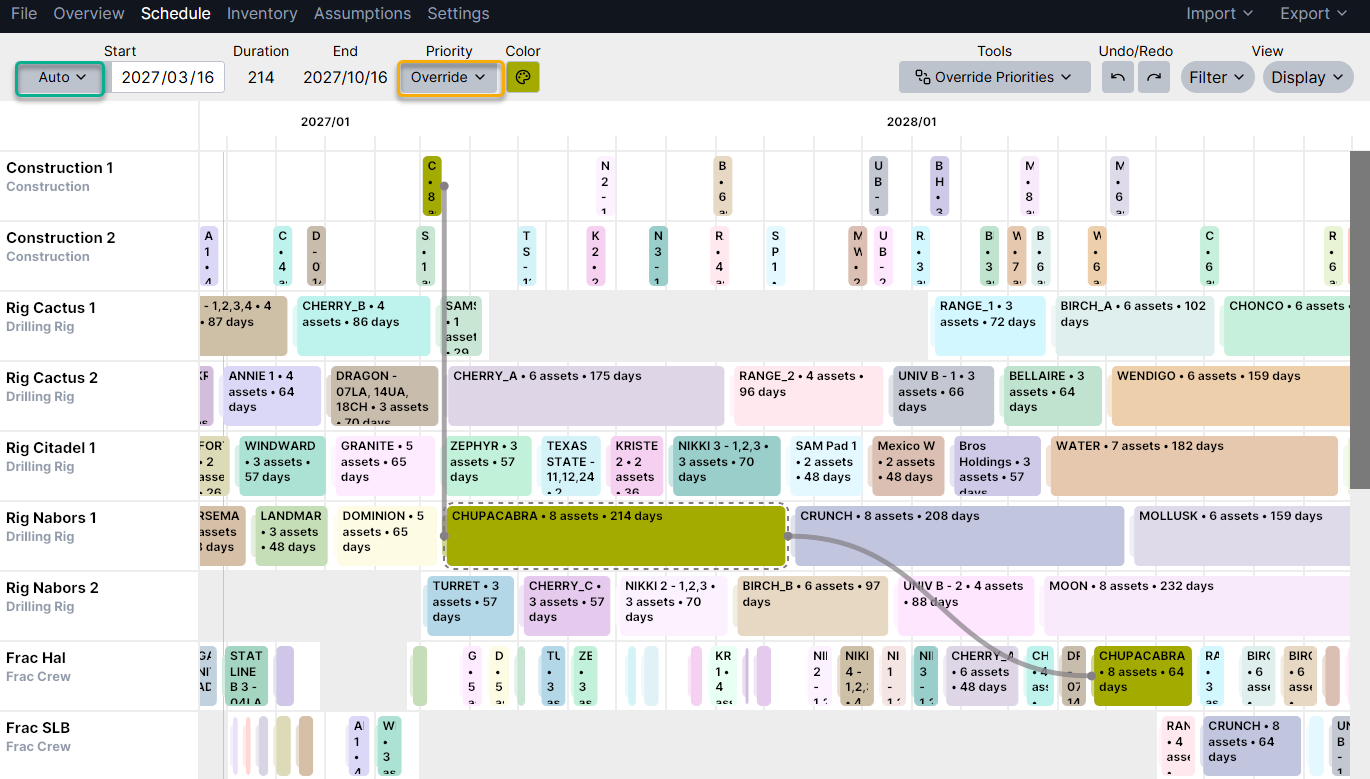
In this example, we'll move the Chupacabra pad while using "override priorities". You can see in the context menu that the start date is still "auto" and the priority has been set to "override". If something prior to Chupacabra has a duration change, then it's start date will automatically adjust, while keeping it in the same relative order on the resource.
Before:
After
Let's assume Dominion is going to take longer than expected. I can extend the duration of Dominion, and Chupacabra will adjust appropriately:
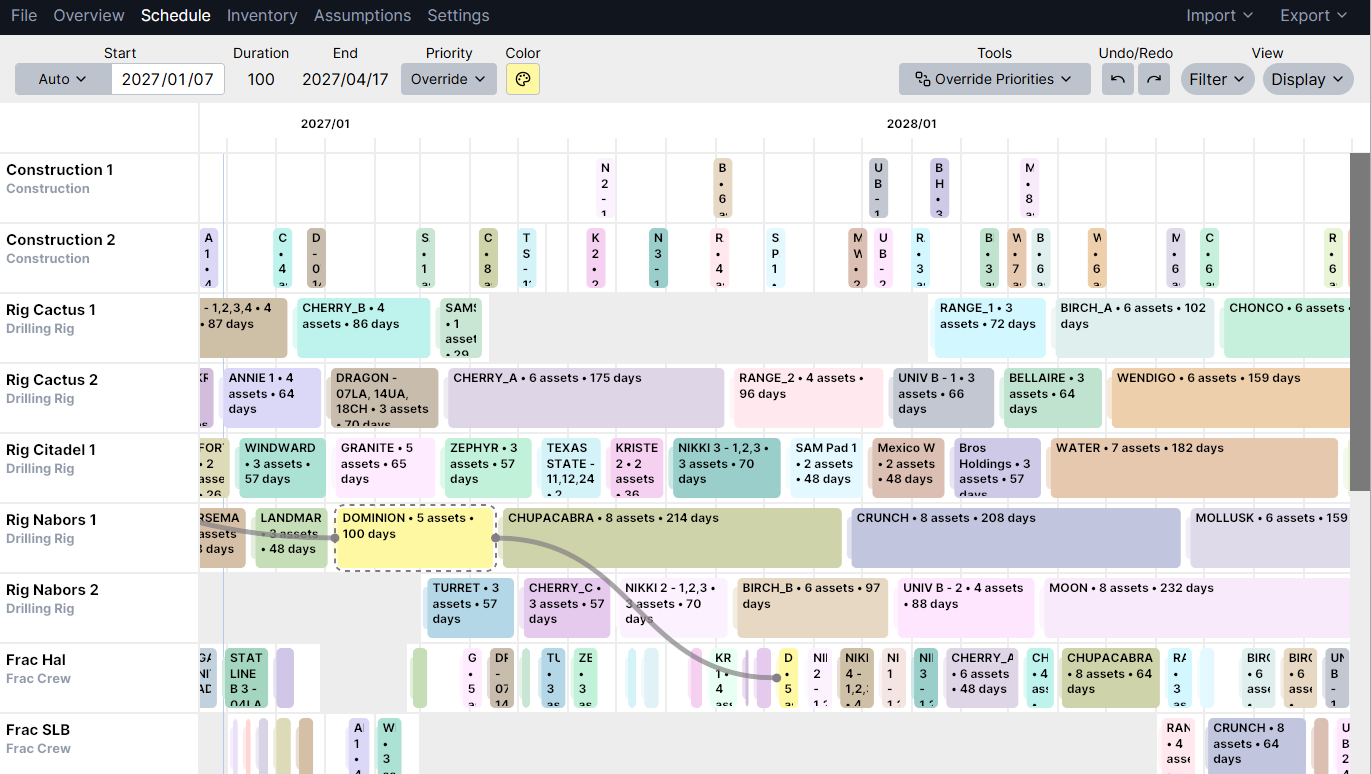
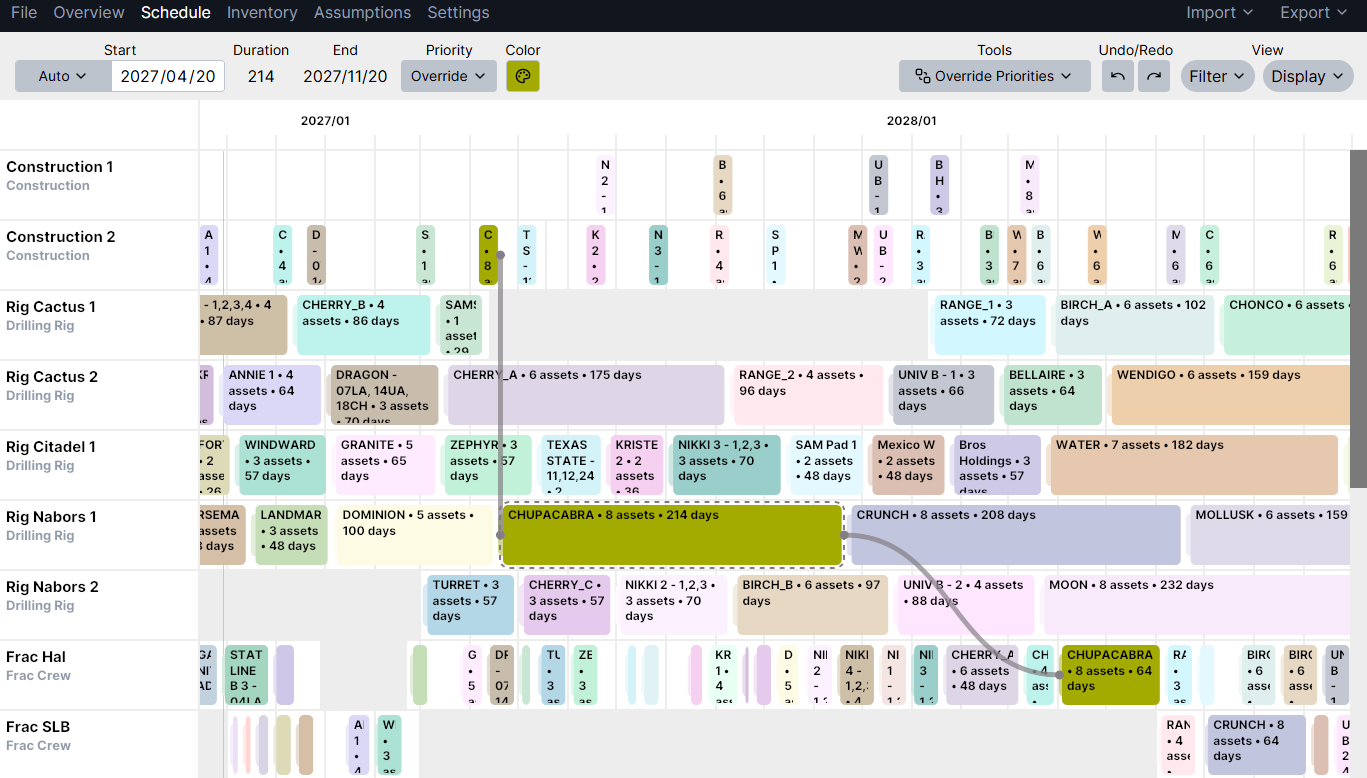
This works because the order has been locked in place, but the start dates are still flexible
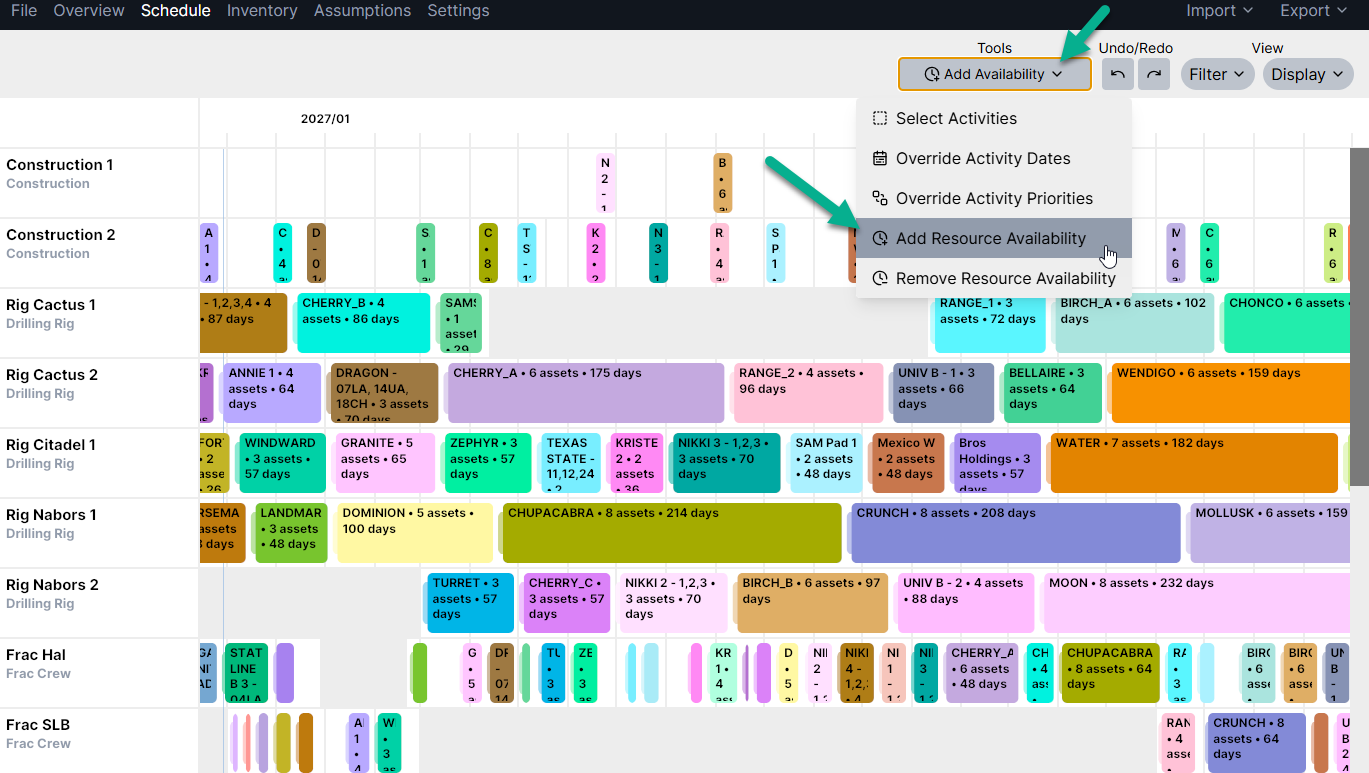
Resource Availability Tool: add or remove resource availability
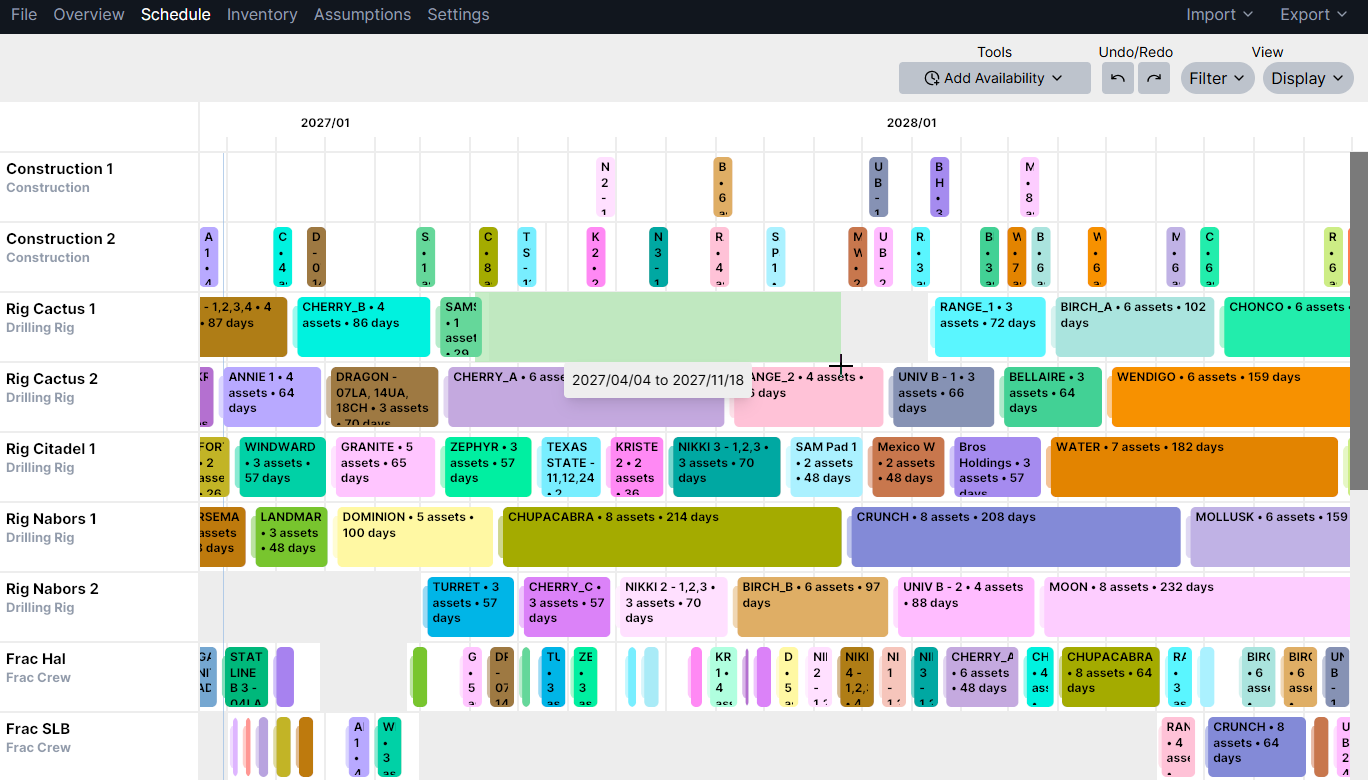
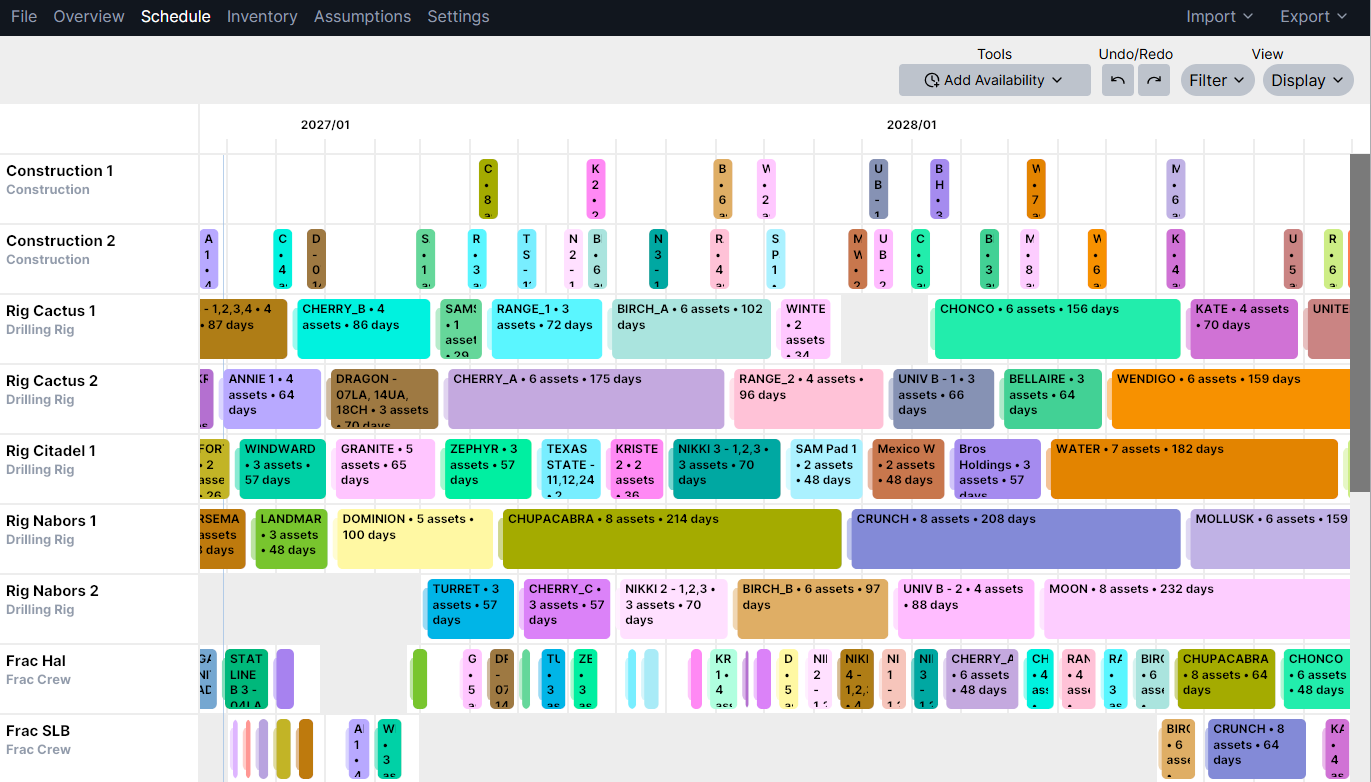
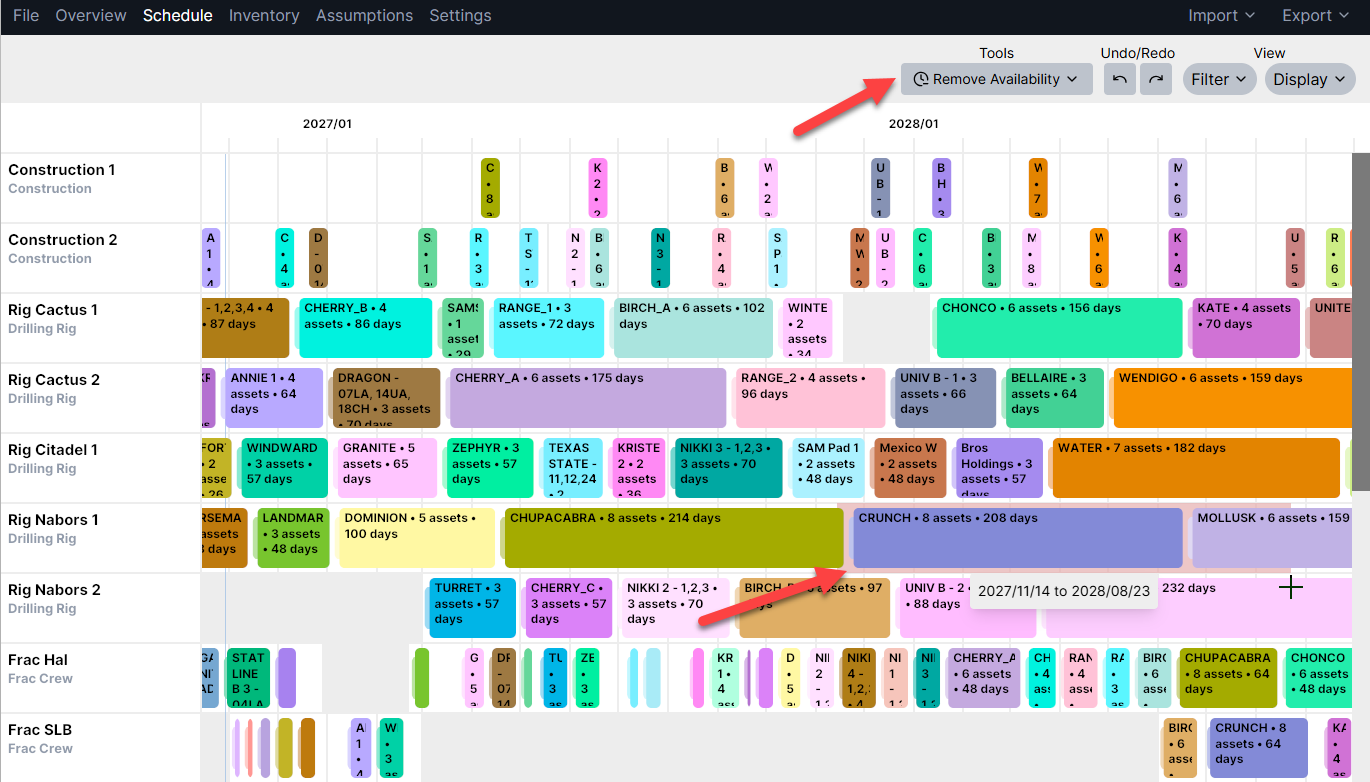
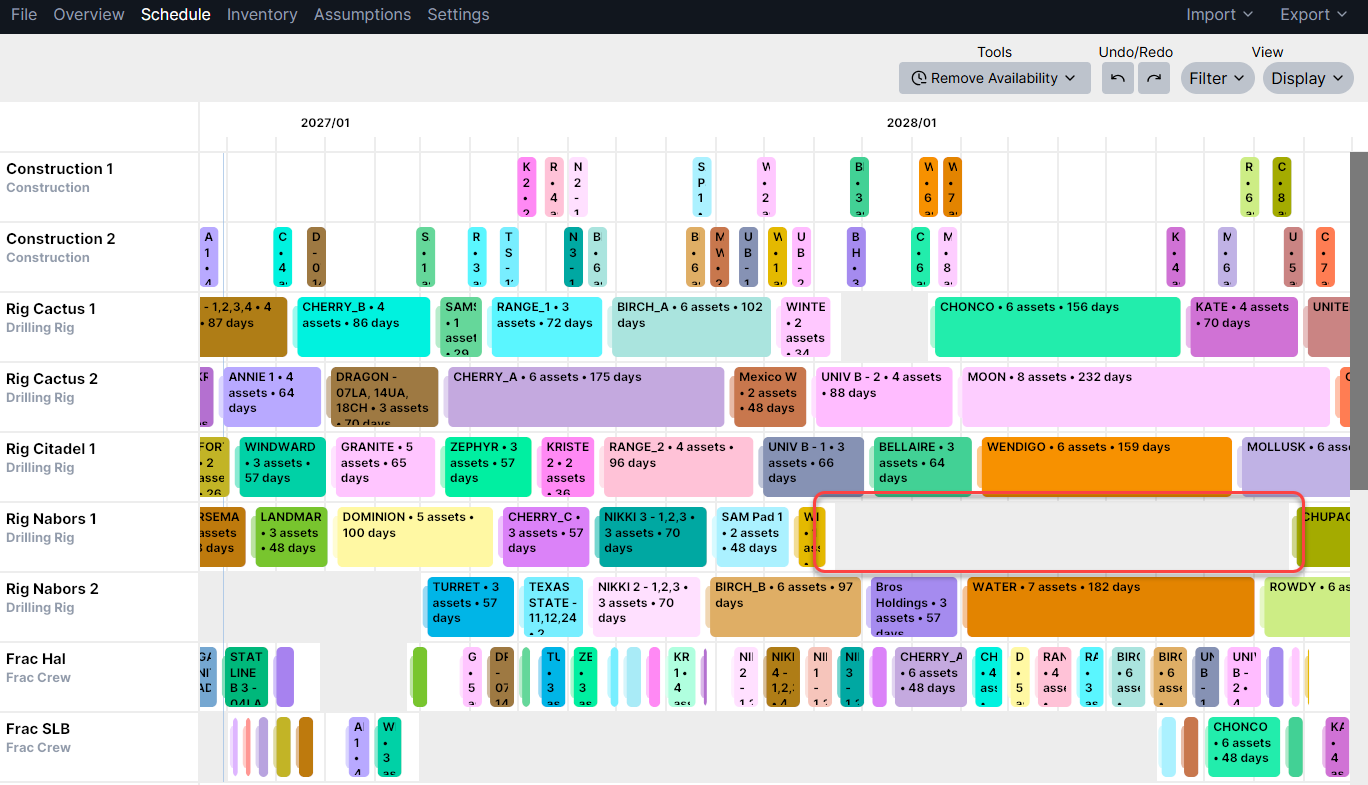
When you select "Add Resource Availability" or "Remove Resource Availability", you can click and drag on the schedule to change the availability. This feature makes it even quicker to evaluate scenarios and balance crews, without ever having the leave the schedule view.
The Planner will display a green rectangle to preview the availability period you're adding, or a red rectangle when you're removing availability.
Example adding availability:
Example removing availability:
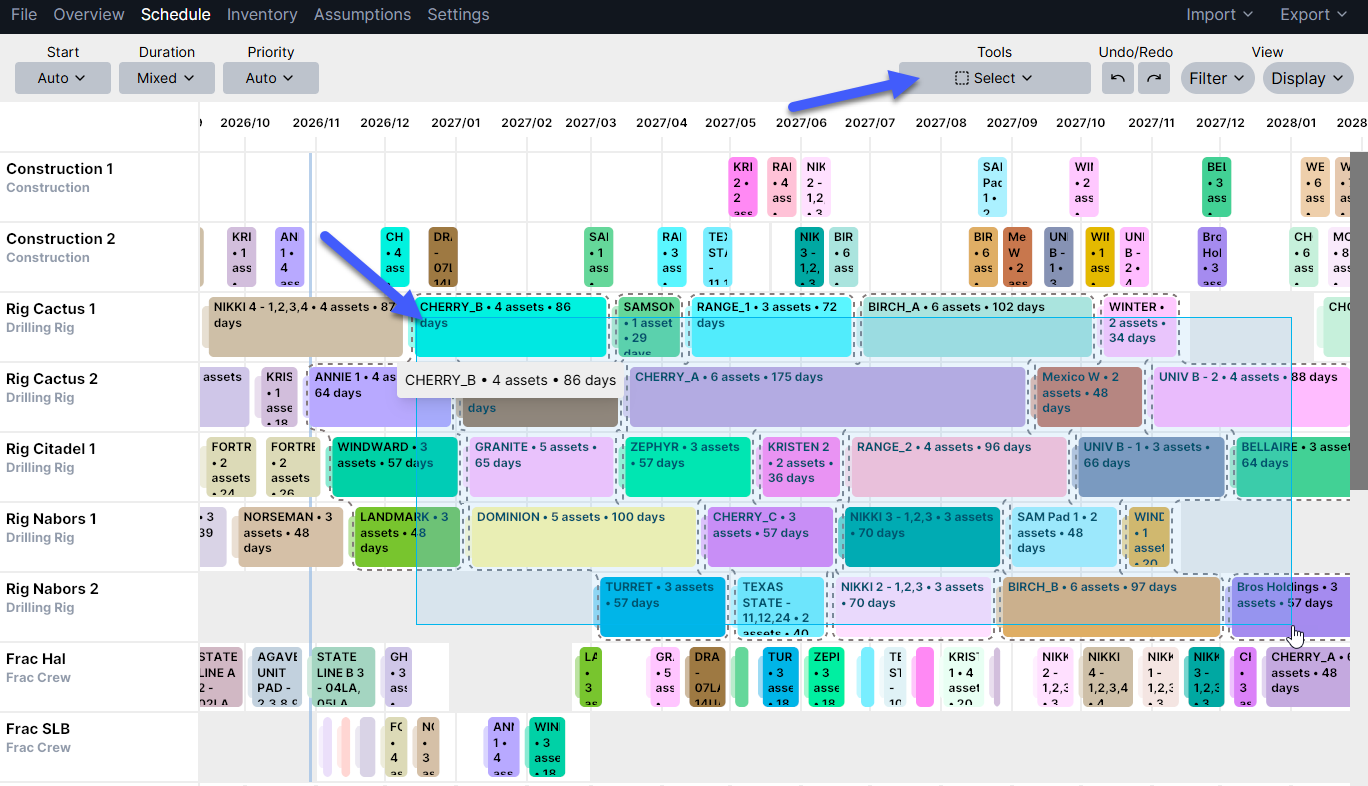
Select Tool: drag multi-select
You can select multiple assets at once by holding shift + click, or by drawing a box using the Select tool
Let's say you've been moving a schedule around to get next year's budget set, you're happy with it, and you want to lock in the order for that timeframe. You can draw a box around pads to select them, and flip the Priority drop town to "Override".
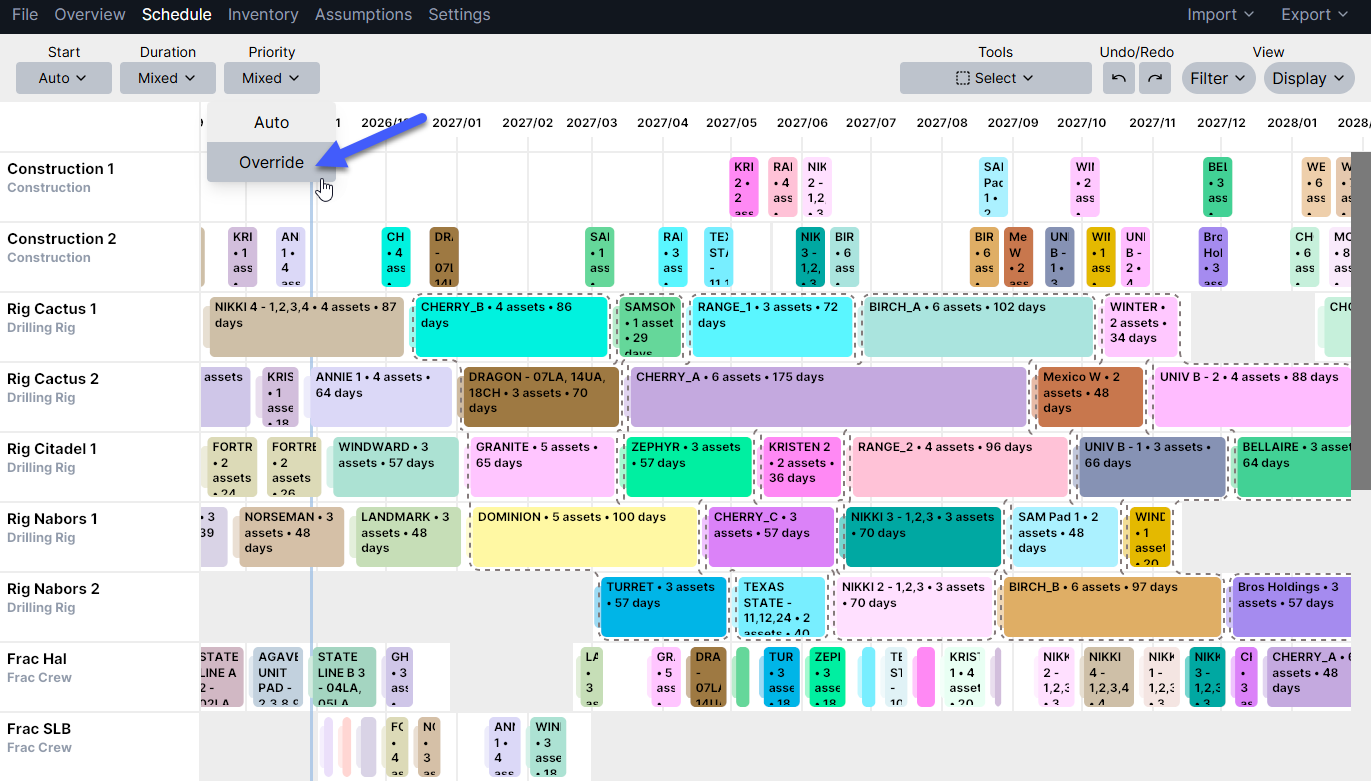
This will lock in the order for each pad for the year, while still allowing you to make updates to durations or other assumptions.
This can always be undone by dragging and dropping pads into new positions, or by toggling the Priority setting back to "auto" to reset everything back to your base assumptions.
Tips & Recommended Practice
Only activities that require resources will be visible from the Gantt (and they can be hidden if needed)
Use Ctrl + G to toggle between individual asset and grouped view
Avoid dragging and dropping "just in time" activities like pad construction. Most use cases work best when rearranging driving steps like drill or frac
When dragging & dropping, select the first asset in a group to keep the group together (or use grouped view)
-
There are two ways to split a group:
Update the applicable attribute to decouple (ex: to split a pad into two groups for frac, create an attribute for “frac group” and give different names to the appropriate inventory wells)
Manually grab assets in the middle of the group to separate them (their attributes and original assumptions will remain intact, and if they are converted back to auto model, the group will be scheduled together again)
Importing schedule actuals/bulk updates: you can import schedule details in bulk via Excel or Snowflake. For an example import template, see details in this Excel Integration article