
Planner Release Notes V2.6
This release focused on decline curve parameters for rates and ratios, improved file management within the Planner, and a huge amount of usability and performance improvements.
📉 Forecast With Decline Curve Parameters
Planner 2.6 adds decline curve parameters as a forecast option for both rates and ratios! This is an alternative to the existing monthly rates option.
Decline parameters can be used directly on wells or type well profiles. Here's what that looks like:
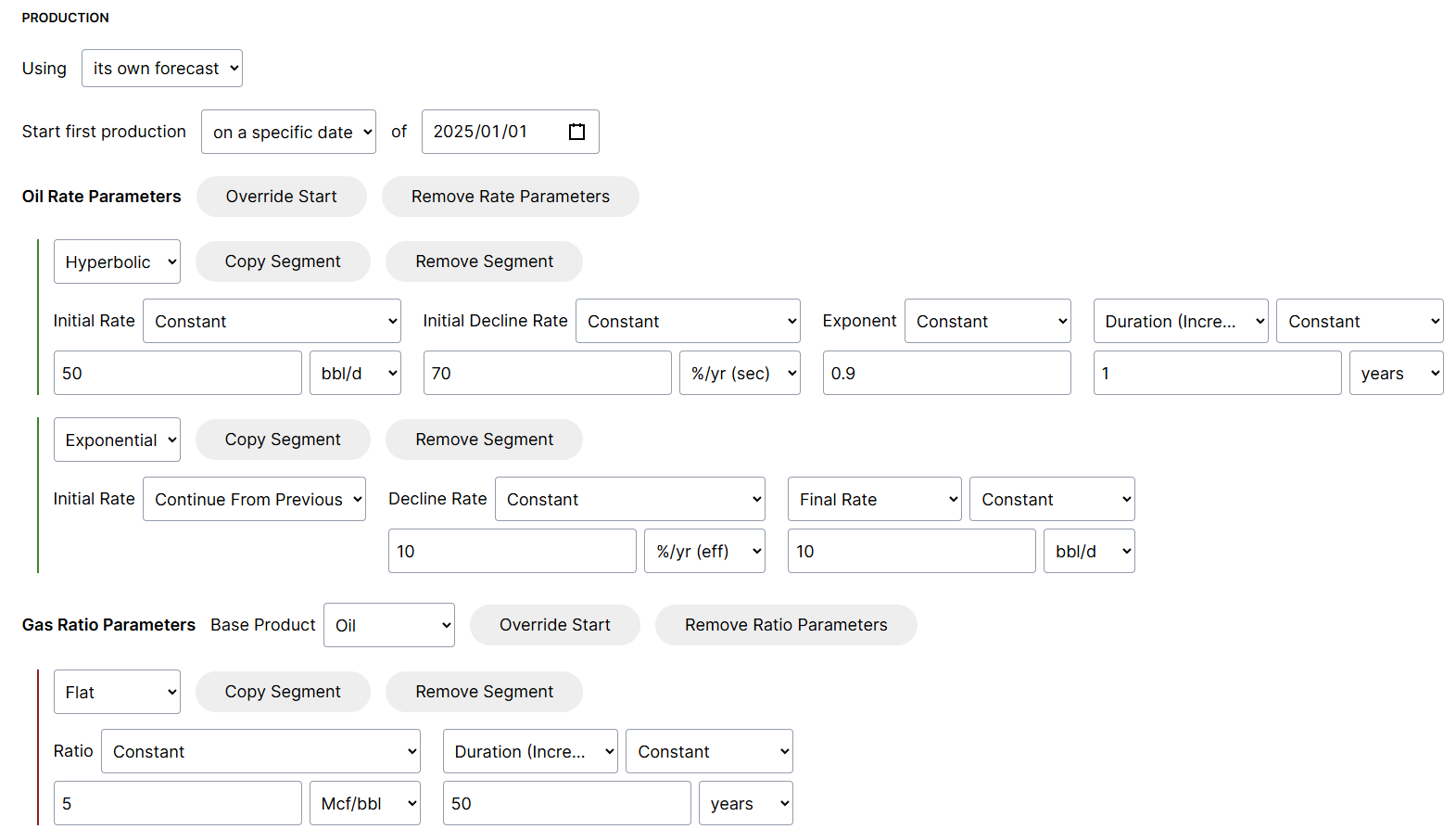
Products can contain multiple segments, like the hyperbolic and exponential segments shown in the above screenshot. Each segment contain parameters that define a hyperbolic, harmonic, exponential, linear, flat, or a delay. Ratio parameters can be defined in the same way as rate parameters. For example, it's possible to define a gas-oil ratio linearly changing over time, a flat natural gas liquid yield, or ratios with exponential declines (semi-log).
Decline parameters can also use formulas. This is useful because type well profiles can use lookup tables or asset attributes to change decline parameters slightly while still sharing the forecast. For example, a type well profile could use a formula for the initial rate to scale production based on lateral length. It's already possible to scale production with scaling factors, but this allows for finer-grained control over how the scaling is applied (e.g., scaling initial rate and total volume by different amounts).
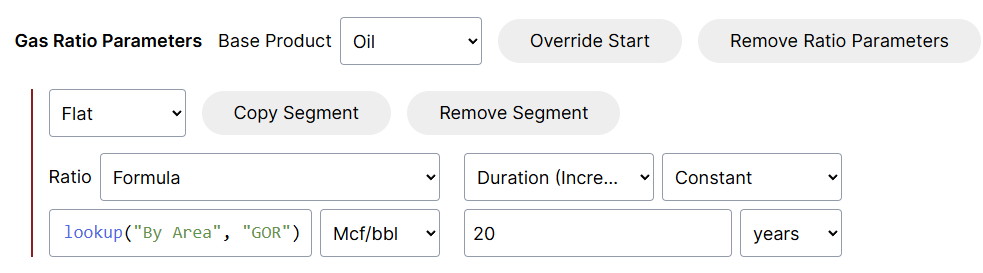
Each product can specify a start date to override the first production date. This can be useful for producing wells that have products forecast with different start dates:

Planner 2.6 also includes new import options to load decline parameters from Excel and ComboCurve.
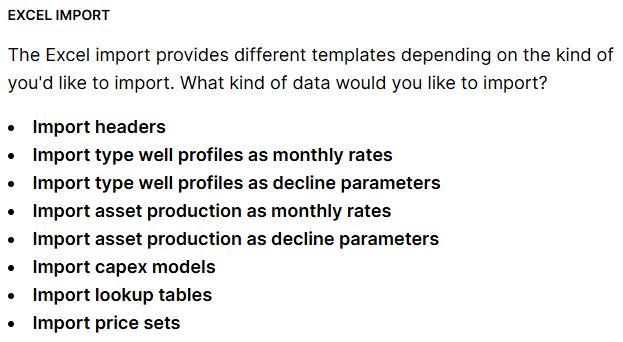
The Excel import includes new templates to import decline parameters for type well profiles and assets:

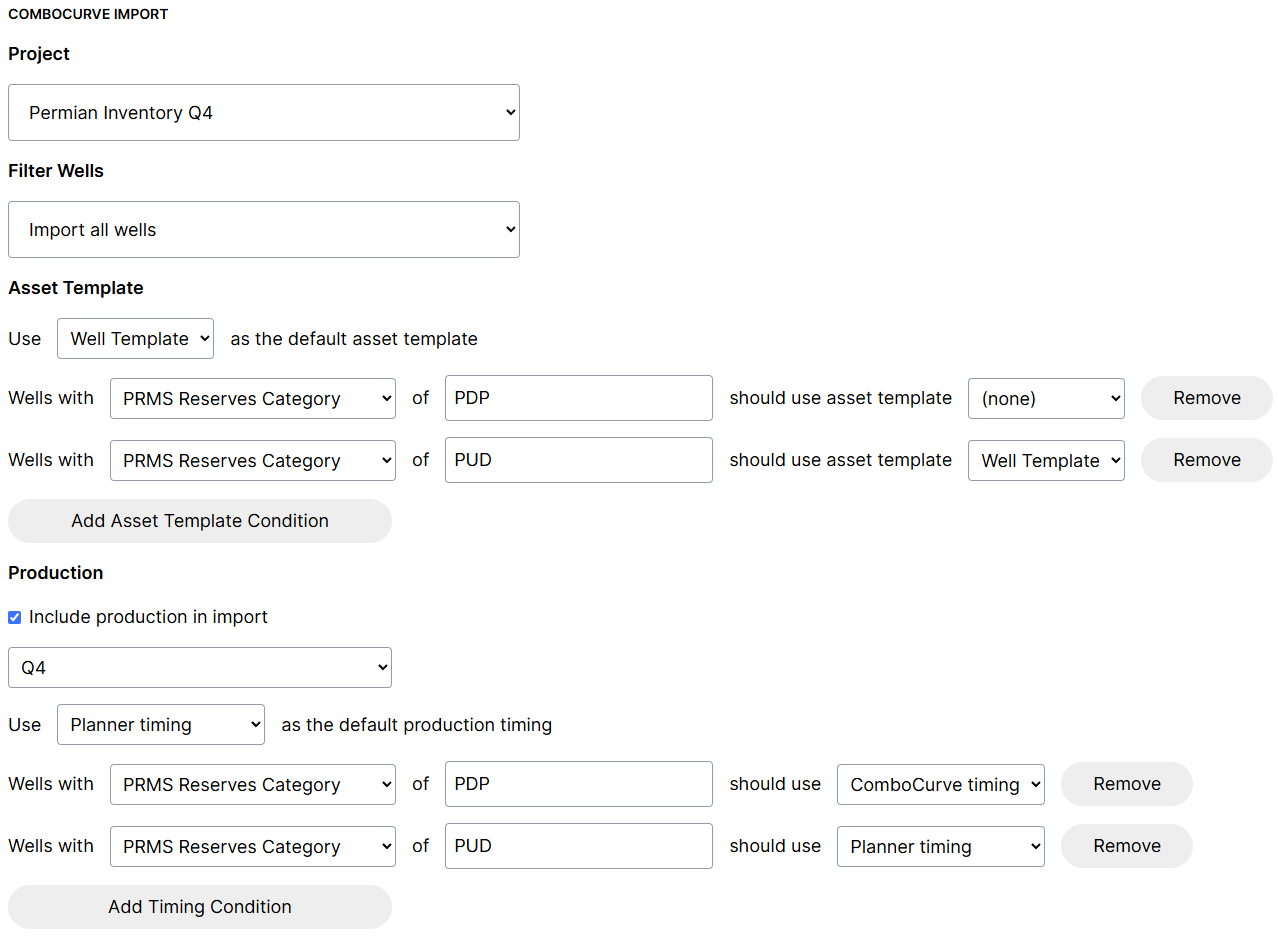
The ComboCurve integration has an option to import production and specify which production timing is used:
More integration options for decline parameters are planned. Please let us know if there's any decline import you'd like to see next!
Also, part of the decline calculations have been open-sourced for anyone that would like to understand how the parameters are used to generate results:

There's also a new project to compare how decline parameters are used in calculations across several popular tools. Several vendors have agreed to participate and have shared results for the initial set of test cases. Initial results are already available and will be expanded over time. For example, a comparison between how a simple hyperbolic forecast is calculated across several tools is available under the "test-cases" directory:
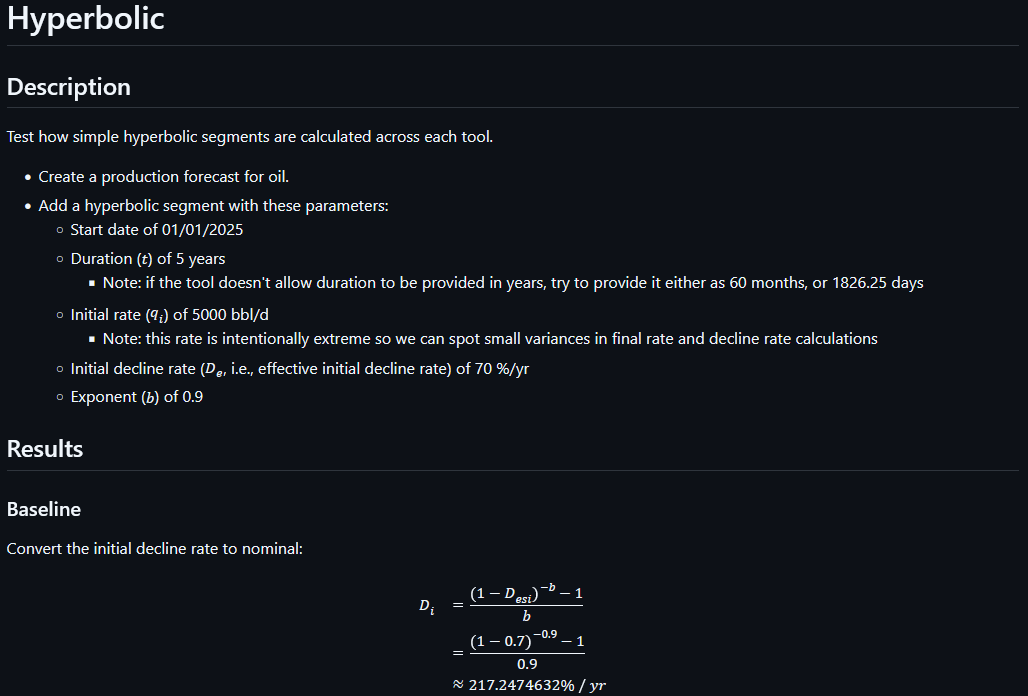
The goal of the forecast comparison is to help people understand their calculated production results in each software. For example, you can use the forecast comparison as a reference to account for calculation differences to match production results across tools.
Please let us know if you'd like any help setting up decline parameters in your plan, or have any questions about how it works!
🔗 Upgraded Menu
Planner 2.6 improves the menu design by combining the toolbar and menu together:

The profile, alerts, and help file buttons have been moved to the top next to the other window buttons.
As part of this change, you can quickly select your plan's name to see where it's located:
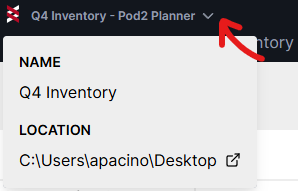
The smaller height means more space for your schedule, which can be really helpful when working with many resources.
📂 Improved File Management
Planner 2.6 adds several new file management improvements! There's a new "File" tab:
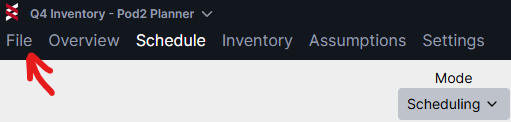
The File tab builds onto the original launch screen of the Planner, so it still contains buttons to create a new plan or open an existing plan, and a list of recent plans.
The File tab includes new "Save As" and "Save Copy" buttons:
"Save As" will save the current plan with a new name, and you can continue working on the newly saved plan. This can be useful for switching to a new copy of a plan before you make changes to it.
"Save Copy" will save a copy of the current plan with a new name, but you'll keep working on the original plan. This can be useful when you've made a set of changes and want to save off a version before you make more changes.
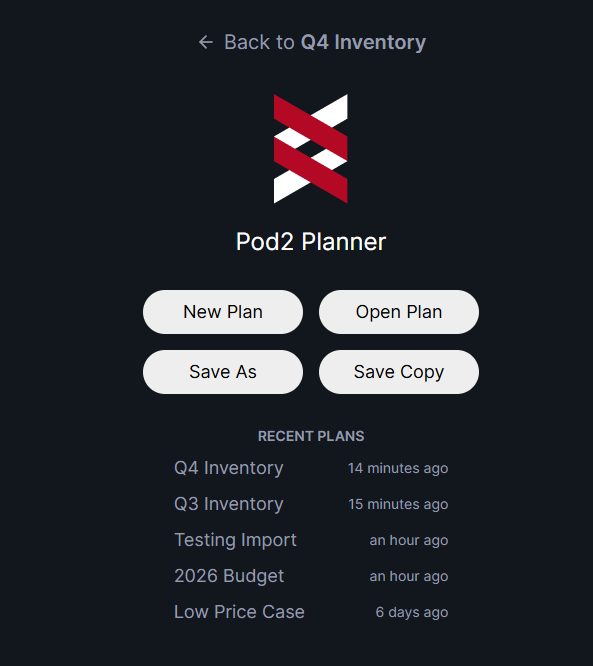
At the top of the File tab, there's a link to return back to the plan that's currently open.
The "Recent Plans" list has also been extended to show the last time you were working on each plan.
⚙️ Metric Settings and Activity Counts
Previous Planner versions automatically added or removed metrics depending on which inputs (oil production, capex, revenue, etc.) were available in the plan.
However, for certain use cases you might not want to see certain metrics (e.g., removing water production from the schedule view), or you might want to add more metrics (e.g., viewing both potential and curtailed production at the same time). That's why Planner 2.6 introduces metric settings under the Settings tab:
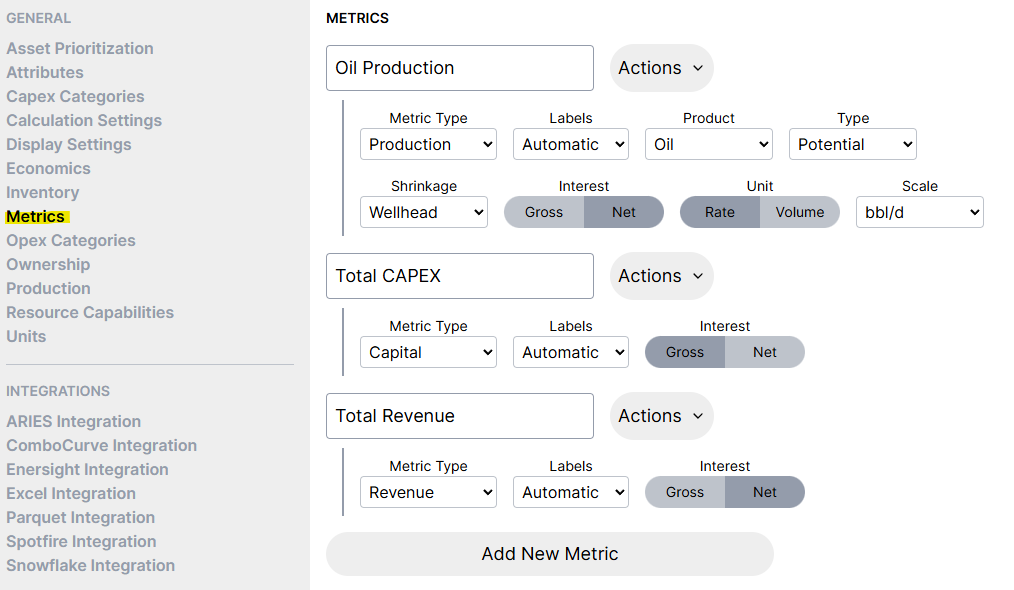
The options are mostly the same as you'd see in the Schedule tab, with extra buttons to add new metrics or remove existing metrics.
As part of the metric settings, there's a new metric type for "Activity Count". This allows you to count the activities happening through time on your schedule. For example, to count drilling activities, you might set it up like this:
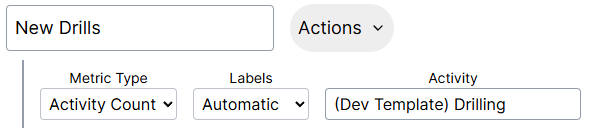
Then the count will be shown on your schedule:
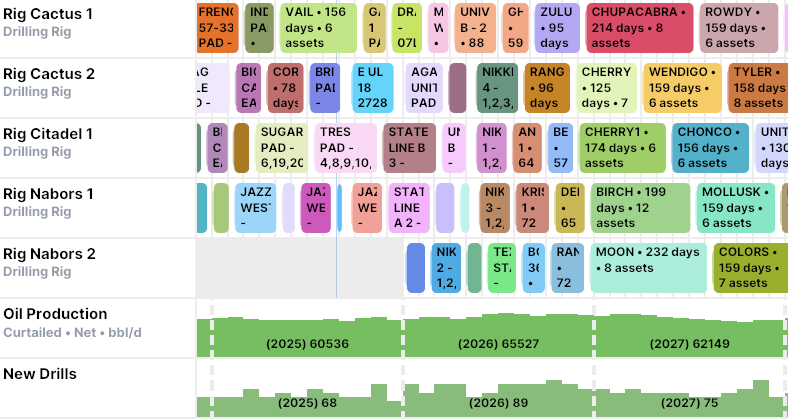
You can also select multiple activities to sum multiple activities (e.g., summing frac and refrac activities across separate asset templates).
➕ Offset Capital Timing By Months
Planner 2.6 adds more flexibility to capital modeling by adding a "months offset" option for capex timing:
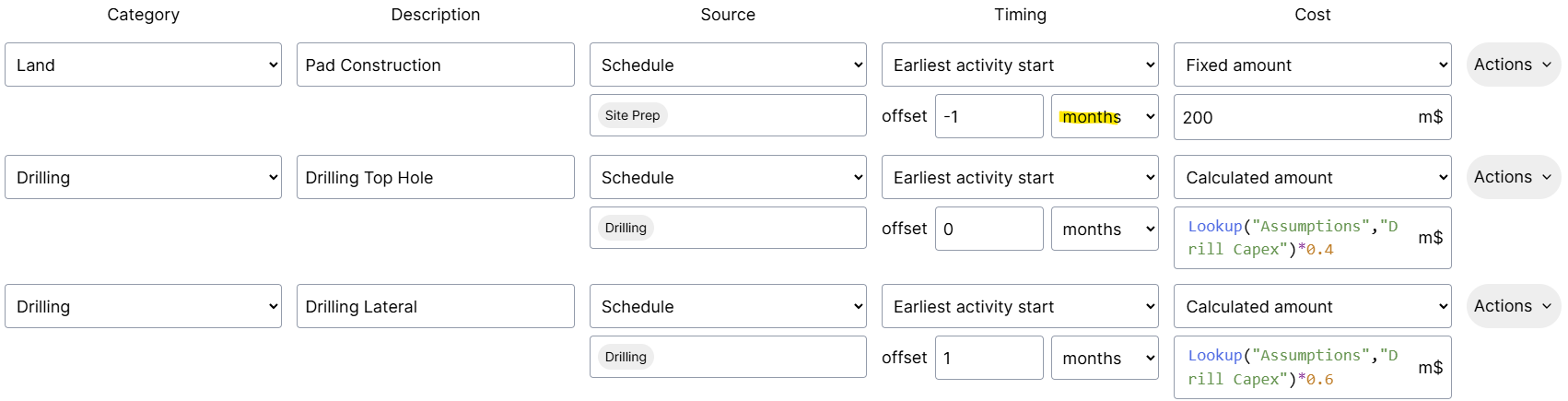
This can be useful for companies that estimate typical capex profiles (i.e., how capex is spread monthly at the well-level) outside the Planner. This allows you to use the same monthly spread in the Planner.
📩 Import Production By Attribute
To avoid problems with well names changing, most people try to use unique well identifiers where possible.
Planner 2.6 expands the production import to allow forecasts to be imported by any text attribute. This works the same way as the other imports that allow this already. For example, you can update forecasts by your own UWI, API, PROPNUM (for anyone using ARIES), or any other attribute you'd like to use instead of asset name.
🏎️ Performance Improvements
Speed is extremely important to the Planner. That's why Planner 2.6 received several performance improvements across the calculation and user interface.
The most noticeable speed improvements are related to formula calculations and interactions on the Inventory tab. The improvements apply to every plan, and might be more noticeable for larger plans.
🔍 Inventory Filters and Asset Count
In Planner 2.6, filters in the Inventory tab will remain active while you're still working in the plan until you clear them. This makes it easier to filter down to a pad in the Inventory, switch to the schedule, and return back to the pad in the Inventory without having to locate the pad again.
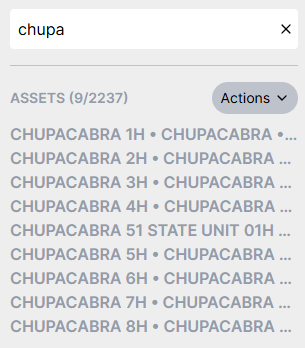
Also new to Planner 2.6 is the count next to the "Assets" label. In the screenshot above, the count is showing that the filter matches 9 assets out of 2237 total assets in the plan.
🔝 Reordered Assumptions
The Assumptions tab has been reordered to better match the paths people were taking through the Planner:
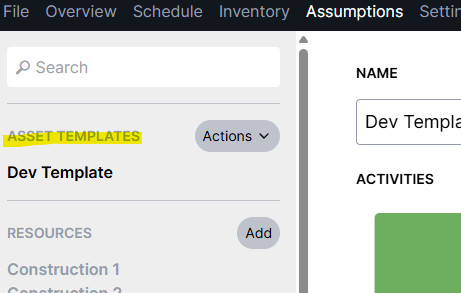
In previous versions, the Assumptions tab would contain resources at the top of the sidebar, and would select the first resource by default (usually construction). Planner 2.6 changes the order to move asset templates to the top of the sidebar, and selects the first asset template instead.
⏭️ Use Schedule Group Selection in Inventory
When you select an asset in the Schedule tab, the asset is automatically selected when switching to the Inventory tab.
In previous versions of the Planner, this only applied when viewing individual assets, but not when viewing assets by group. In Planner 2.6, selecting a group of assets in the Schedule tab will also automatically select the first asset in the group on the Inventory tab.
🪟 Remember Last Window Size
Previous versions of the Planner defaulted to a smaller window size when opening it. When you reopened the Planner, you would need to adjust the window size each time.
To avoid extra window resizing, Planner 2.6 remembers the window size you last used. The next time you open the Planner, the last window size will be applied.
👀 Hide Sidebar Sections in the Assumptions tab
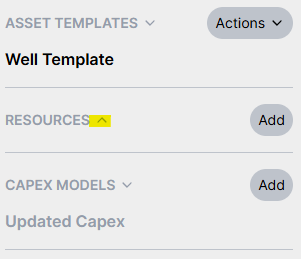
Some of the sections in the Assumptions tab can grow relatively long, especially once you have a significant number of resources or type well profiles. Planner 2.6 adds the ability to expand or collapse these sections, so you can hide sections that you don't edit very often.
⬆️ Arrow Keys Move Schedule Vertically
The left and right arrow keys previously allowed you to move around the schedule through time.
To make it easier to work with many resources or smaller screens, Planner 2.6 also adds the ability to move vertically on the Schedule using the up and down arrow keys.