
Well Readiness & Status Tracking
✅ Well Readiness
Overview
Well readiness is important across all aspects of execution and near term planning. For example, asset teams need to be able to understand the priorities based on the near-term drill schedule (e.g., a permit won't be ready in time to meet the planned spud date) and move wells around to accommodate operational realities. Planners need to be able to identify opportunities to accelerate eligible pads, or re-prioritize based on the lead time needed for certain wells.
Readiness is all about being able to execute on your drill schedule and dealing with operational reality. The Planner has always been about bridging the gap between operations and planning, and even the first version was designed with readiness in mind.
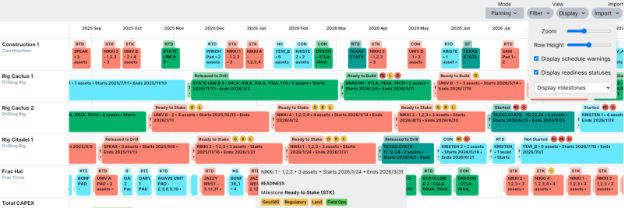
In the Gannt chart you can visualize important milestones (e.g., ready to stake, ready to drill) and task statuses (e.g., permits, drill plan, plats) directly on your schedule.
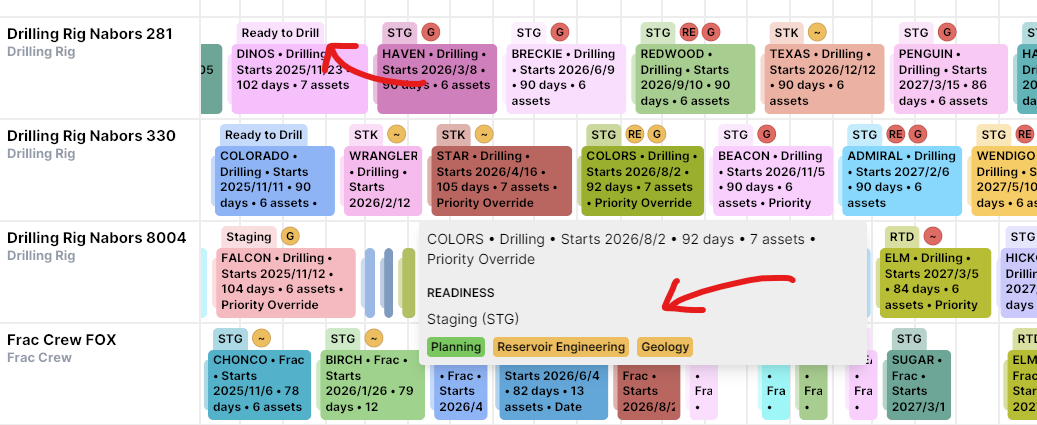
Each well moves through a series of readiness tasks that you can set up however you'd like. As certain tasks are completed, the well advances between milestones. All task statuses that are relevant to the next milestone are displayed on the schedule. Both the milestone (e.g., "Ready to Drill", "Staging", etc. in the screenshot) and statuses are displayed on the top of each activity (or group), and hovering over the activity will show the full readiness detail.
There's a new readiness section under the Settings tab to customize tasks, milestones, categories, and templates (which tasks apply to each well) to match your current process.
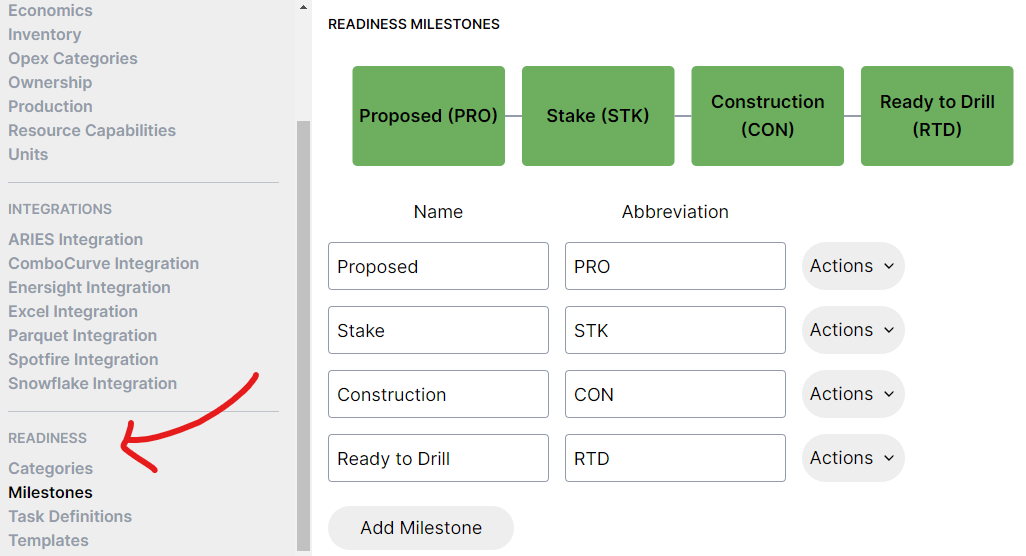
Statuses can be loaded into the Planner in bulk through a new Excel import:

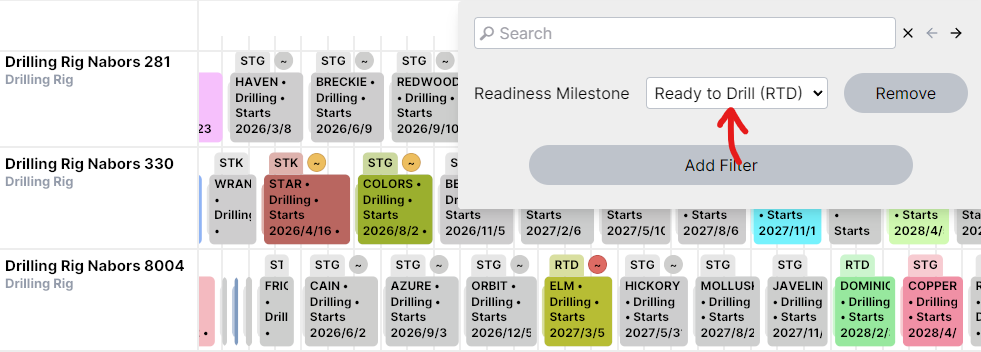
There's also a filter option to quickly locate wells that could be accelerated on the schedule, or delayed if they're at risk:
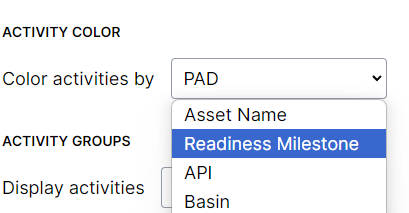
You can color by readiness milestone too:
All of the new readiness functionality is hidden by default while early adopters try it out and provide feedback. If you would like to start using it today, please reach out to Bari (bari@pod2.co) or Leslie (leslie@pod2.co).
The Set-Up
Readiness Categories
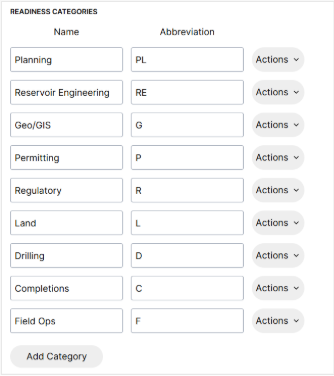
Categories are broad groups that typically represent business teams (e.g Planning, Land, Regulatory) that can be visualized on the Gantt. Categories can be visualized on the Gantt chart along with whether the underlying tasks in that category have started, are in progress, or have finished.
Categories can be created under Settings, along with an abbreviation for Gantt visualization
Readiness Tasks
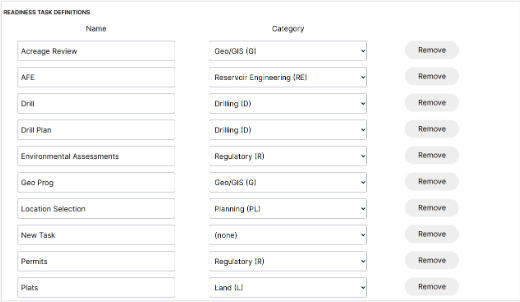
Tasks are individual pieces of work that need to be completed to get a well ready for execution. Each task is associated with a specific category. Tasks are populated using the Excel import.
Readiness Milestones/Phases
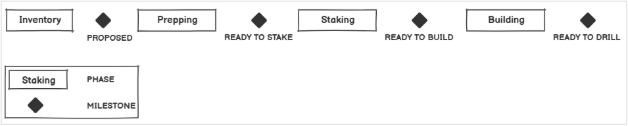
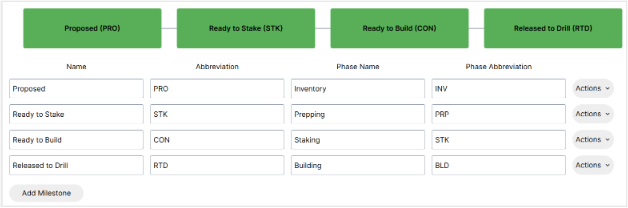
Milestones represent a chronological series of stage gates that a well progresses through to get to completion. Tasks are associated with milestones using templates. Completing all the associated tasks progresses the well to the next milestone. Milestones can also be overridden using the Excel import.
Milestones represent the culmination of the step. For example, if there are tasks A, B and C to be completed, the milestone does not populate till all tasks are completed (unless overridden). Milestones show a system generated value of “Not Started” if no task has been edited on a well, and “Started” if any task has been changed. Some users might prefer to view the current phase they’re in (instead of the last end point passed). Milestones have an associated phase that can be populated and visualized on the Gantt.
Milestone/Phase Relationship Example
Only one set of milestones can exist per Planner model.
Readiness Templates
Templates allow users to define the relationship between tasks and milestones. Tasks can be associated with one or multiple milestones. If a task spans multiple milestones, the system progresses to the next milestone if everything else is complete. The image below shows a visual representation of tasks, milestones and phases. Multiple templates can exist in a Planner project to account for different processes between wells (e.g. Texas – Permian wells vs New Mexico – Permian wells).
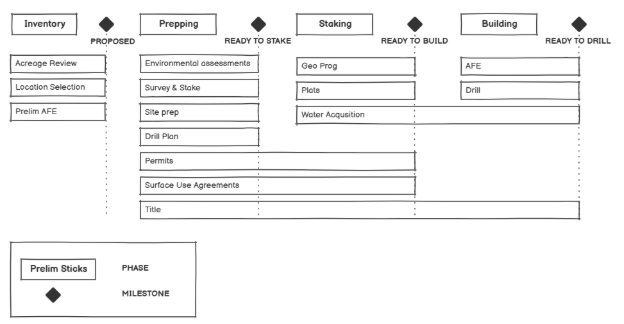
Example Readiness Process
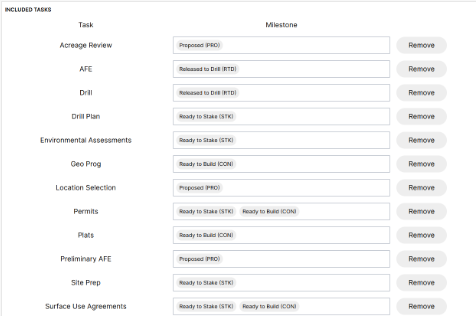
Importing/Updating Readiness Tasks
To import readiness tasks, select Import > Import from Excel > Import readiness task statuses. A sample file is available on that screen as a starting point. Edits can be made to the import file and then it can be pasted into the Planner. Tasks can be “X” (Not Applicable), “N” (Not Started), “I” (In Progress), “Y”/[date] (Finished). Currently any date imported marks the task as completed.

Sometimes a user might want to start discussing items in the next milestone even though the current one is not quite done yet. This can be done in the excel import file. The name in the file must match the milestone name in the Planner model.
Overriding to a prior milestone generates a warning in the Planner.
Visualizing Milestones/Phases
Milestones/Phases and readiness statuses can be shown or hidden by clicking on the Display dropdown. Individual task detail does not show up on the Gantt, only categories related to the current milestone that still have tasks left. Completed categories show up in the tooltip window, but not above the well. Zooming out changes the milestone/phase from the full name to the abbreviation.
All of the new readiness functionality is hidden by default while early adopters try it out and provide feedback. If you would like to start using it today, please reach out to Bari (bari@pod2.co) or Leslie (leslie@pod2.co).