
Scheduling | Sub-Templates (Subsets of Asset Activity Templates)
🔗 Subtemplates (Subsets of Asset Templates)
This functionality is easier to explain with an example. In some development plans, you might have a situation like this:
You want to develop new wells, but also perform nearby refracs as part of that development. You want to control the order that the refracs happen relative to the new development activities.
This could be represented with an asset template for new development wells (activities including drilling, frac, etc.), and another template for refracs (only a single frac activity), although it can be tricky to accomplish the ordering and relationships between asset templates that you want.
Subtemplates allow you to specify a subset of activities to be used from an asset template. In this example, you could have a single asset template containing all development activities, you can think of this as a master template. Then a subtemplate could allow refracs to only use the frac activities from that template.
The benefit of this approach is that all of the regular relationships and groups defined within an asset template can be shared between the development wells and refracs in this case.
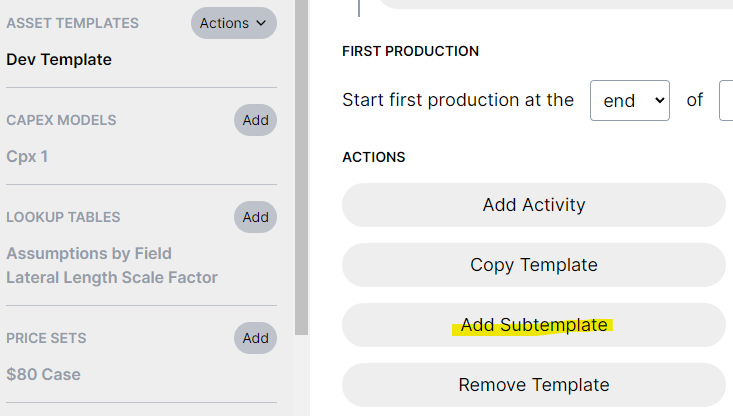
Subtemplates can be added at the bottom of an asset template:
 |
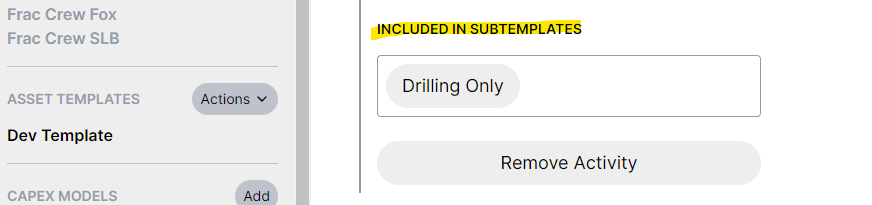
You can choose which activities to include on each subtemplate:
 |
In the Inventory, you can choose whether a well should use all activities from the asset template, or a subtemplate specifying a subset of those activities:
 |
Subtemplates can also be specified in bulk with the Excel import.
Here's a step by step list to get set-up for refrac example:
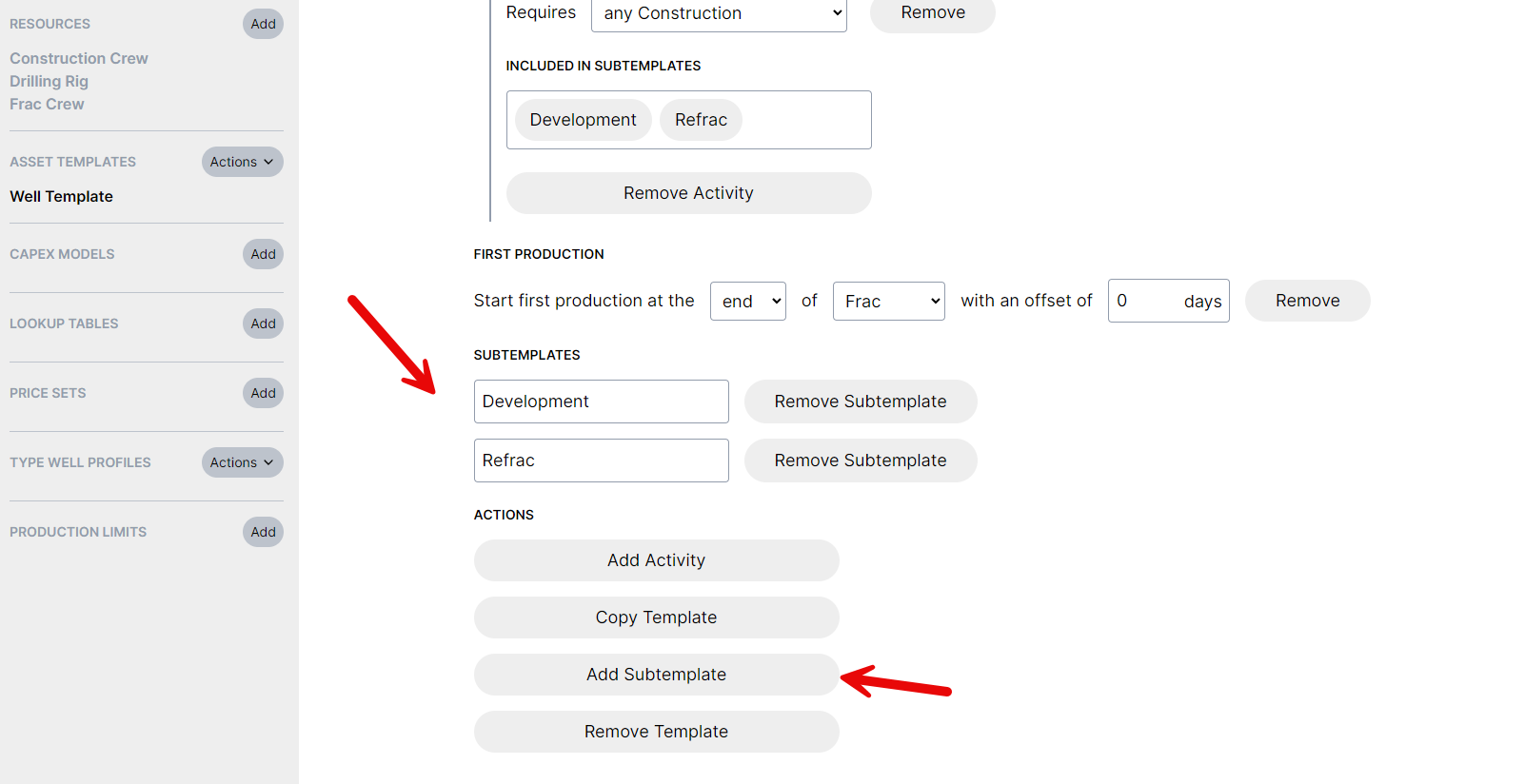
- Select your asset template, scroll to the bottom and "Add Subtemplate"
- Create subtemplates for "Development" and "Refrac"
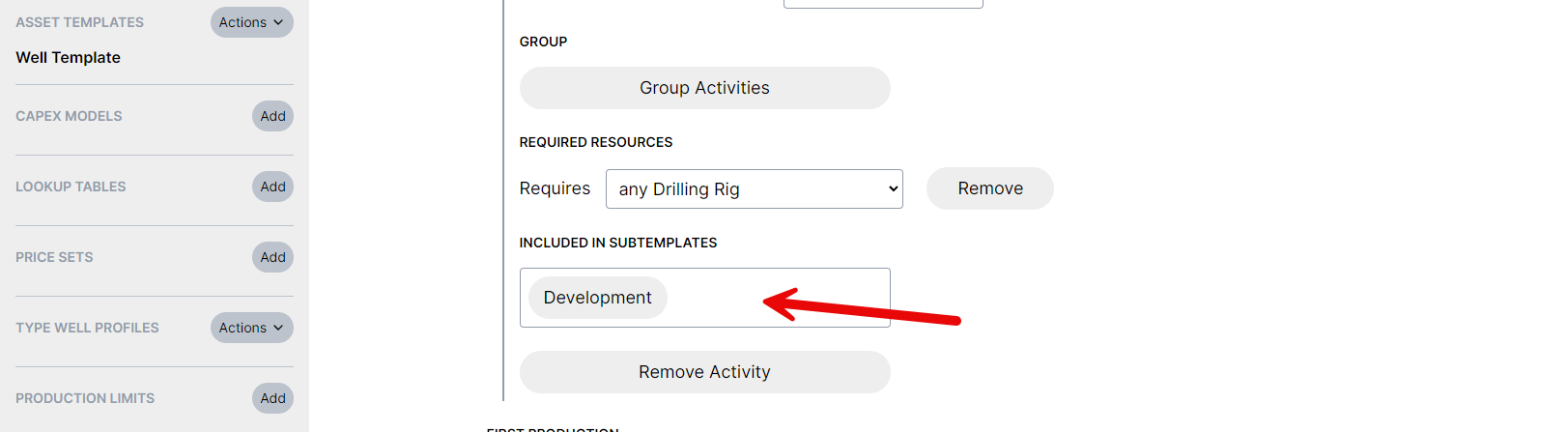
- For each activity, you can specifiy which subtemplates the activity applies to. So for Drilling, you can select just development to have only development wells be drilled
- Finally, apply the correct subtemplate to each well - In your excel import, add an 'Asset Subtemplate' column. If you don't have an excel file you are working with, a quick way to create an import file is to use the 'Export Attributes' export from the Schedule tab, and then add columns for asset template and asset subtemplate to the excel file.

If you'd like help setting this up or are curious if subtemplates could help with your plan, please reach out.
Also, if you don't need subtemplates right now - no problem! You won't see them anywhere except the button at the bottom of your asset template.