
Parquet Integration | Azure, Power BI, Snowflake
The Planner has always been designed to integrate with tools you're already using. Integrations are first-class and the goal is to support whatever integrations people would like.
Some people have been looking for better ways to export Planner results out to their Azure environment or load it into Snowflake and we believe that Parquet fits the bill.
If you haven't heard of Parquet before, it's a file format that allows data (like Planner results) to be efficiently stored and transported for use in other places. For example, Power BI has a connector for Parquet, Azure has built-in options for handling Parquet files, and Snowflake is able to easily load Parquet files.
Currently the new Parquet export can save Planner results locally (to your computer or a shared network drive) or Azure Blob Storage. Local exports can be a useful way to load results directly into PowerBI or other analytics tools without going through Excel. Azure Blob Storage exports can be useful for people using Azure environments (Fabric, Data Factory) or Snowflake that would load these Parquet files for further processing or analytics.
It's pretty simple to use, just navigate to Settings > Integrations > Parquet Integration
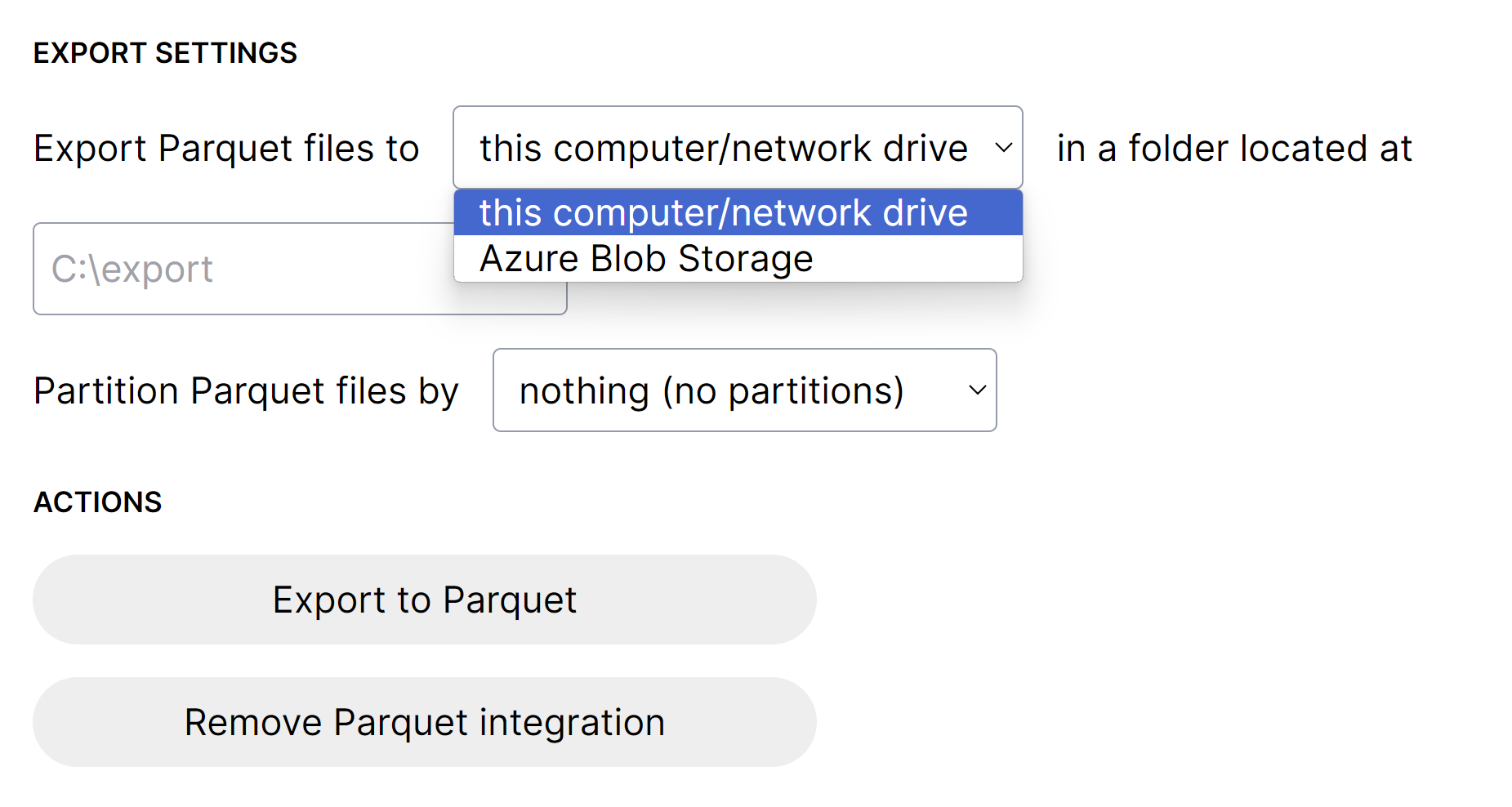
Choose your desired file location, "Azure Blob Storage" or "this computer/network drive", and complete the relevant required fields
"Partition Parquet files by" is optional, and will append text to the file folder name making it easy to keep track of plans and scenario files
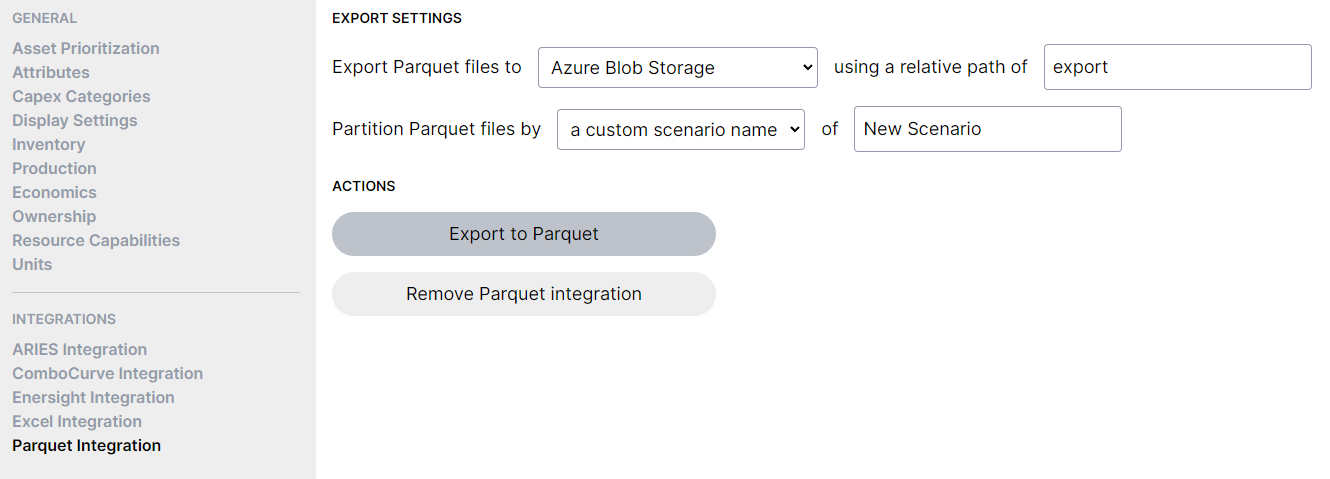
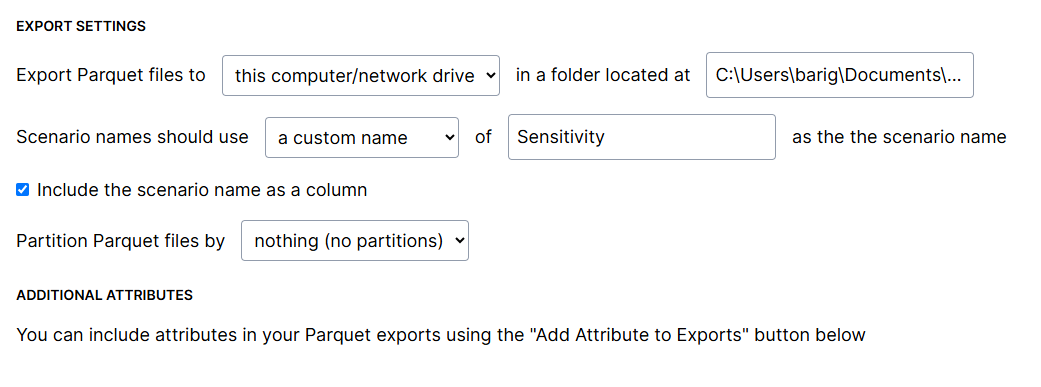
- Partitions mean a folder will be created named after the scenario, with all the parquet files inside
- Scenario name as a column means you'll see the scenario name in each parquet file
- When you choose to use a custom scenario name, you'll also have the option to include that as a column of data (this is especially helpful for performing scenario comparisons in a dashboard or report)
- You can use any combination of these options (both, neither, or one of them)
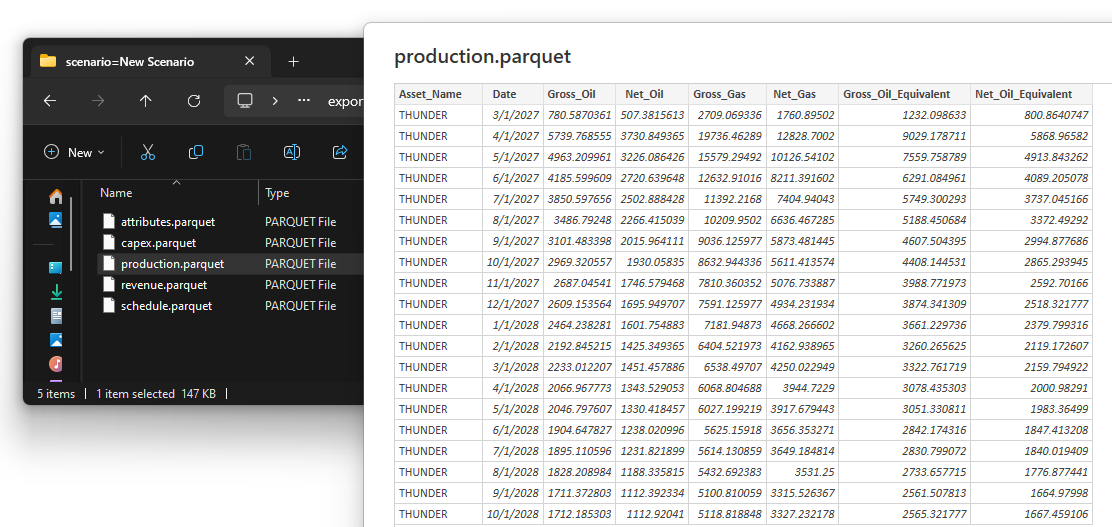
For example, locally exported Parquet files being loaded into Power BI would look something like this (similar to the existing Excel exports):
Please reach out if you'd like help setting this up, or if there are other environments you'd like to use with the Parquet export.