
Excel Integration | Bulk Imports
The Schedule view provides quick access to import/export your data in bulk.
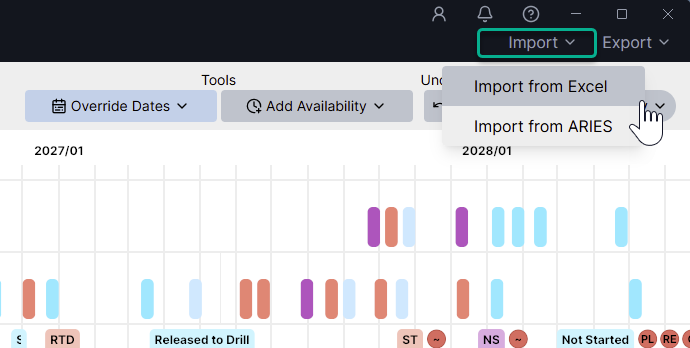
Click Import from Excel to open the import/export window with instructions and a downloadable template.
Choose from one of the following options based on the type of data you'd like to load:
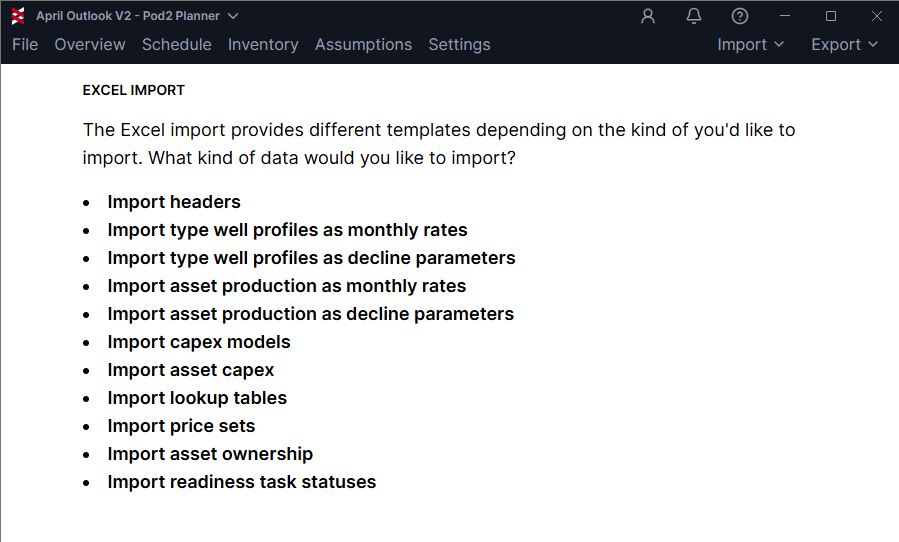
We'll look at Import Headers as an example:

If you already have a template ready to go, simply copy the data (including headers) to your clipboard and hit Paste from clipboard
If needed, hit open the template to download an example. Each attribute needs a name and the type (built-in, text, date or number).

NOTE: Built-in attributes exist by default in the Planner and their exact names must be used. All other attributes, text, date and number are customizable (you can add, remove, rename them).
Once your data file is ready, copy the contents (including headers) and hit Paste from clipboard

You'll see a summary before the import is finalized. Hit Finish import or go back to the previous step if you need to make changes.

Here's a complete list of built-in headers and custom header types that are available for import/export:
Asset Name |
Built-in |
Asset Template |
Built-in |
Asset Subtemplate |
Built-in |
Capex Model |
Built-in |
Opex Model |
Built-in |
Tax Model |
Built-in |
Type Well Profile |
Built-in |
Production Scaling Factor |
Built-in |
Heating Value |
Built-in |
Oil Shrinkage |
Built-in |
Gas Shrinkage |
Built-in |
Working Interest |
Built-in |
Net Revenue Interest |
Built-in |
Lease Net Revenue Interest |
Built-in |
End of Life Condition Type |
Built-in |
End of Life Condition Date |
Built-in |
Surface Latitude |
Built-in |
Surface Longitude |
Built-in |
Heel Latitude |
Built-in |
Heel Longitude |
Built-in |
Toe Latitude |
Built-in |
Toe Longitude |
Built-in |
[Activity Name] Start Date |
Built-in |
[Activity Name] Duration |
Built-in |
[Activity Name] Resource |
Built-in |
Custom |
Text Attribute |
Custom |
Date Attribute |
Custom |
Number Attribute |
Note: not all of these will appear in the header export by default. Some, like Price File for example, will only show up if there are assets using something other than the "default price file". This is intended to keep the header file import/export more manageable, only including fields that are required or updated frequently