
Capital | CapEx Models
Capital expenditure is obviously an important part of asset development planning and budgeting. The Planner makes it easy to forecast using configurable capex models, with results that update in real-time with as your schedule changes.
You can define the capital categories, amounts and when the capital should hit in relation to an asset's scheduled activities.
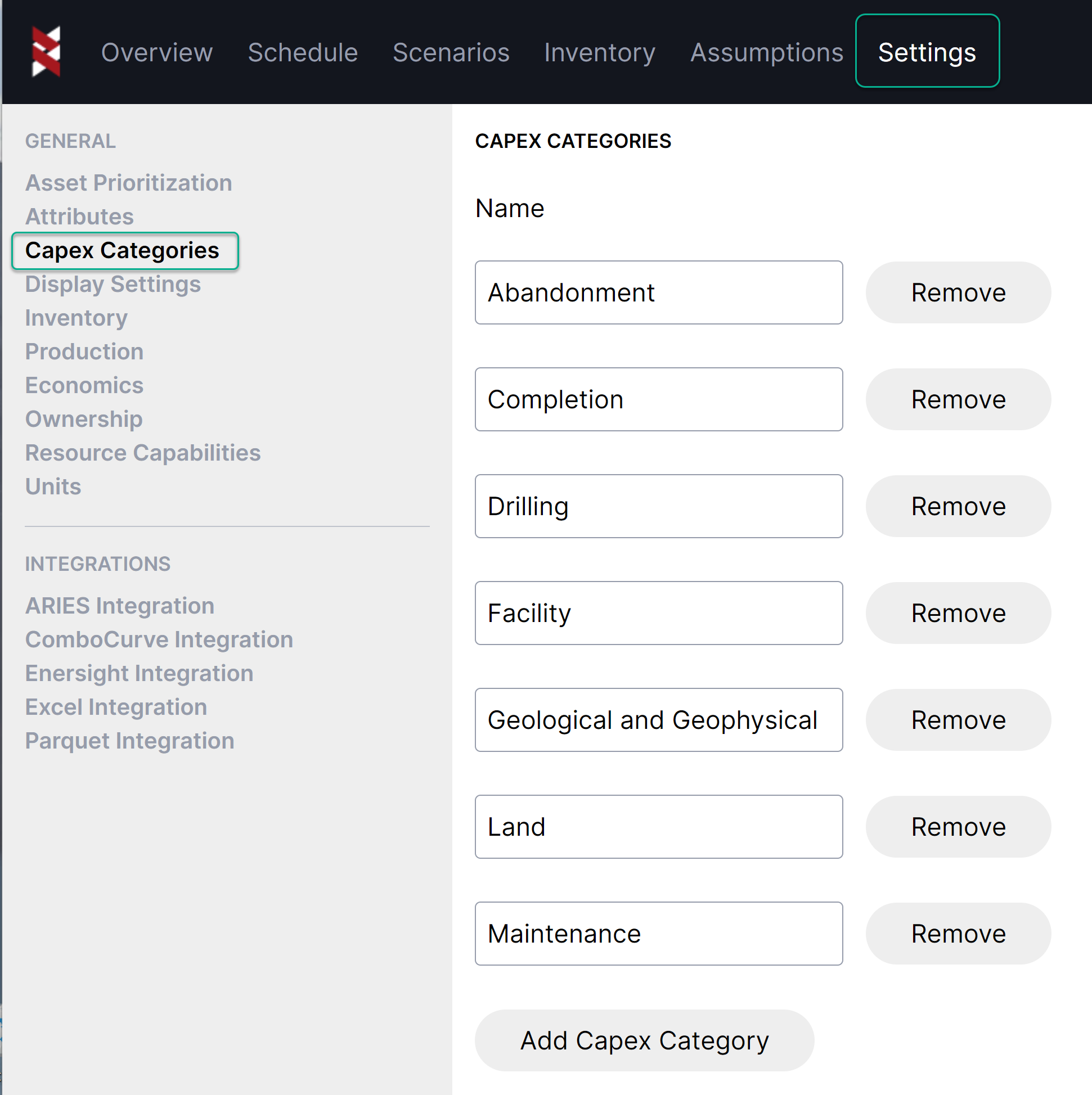
For new plans, we get you started with a list of common categories. If needed, you can modify them under Settings > Capex Categories
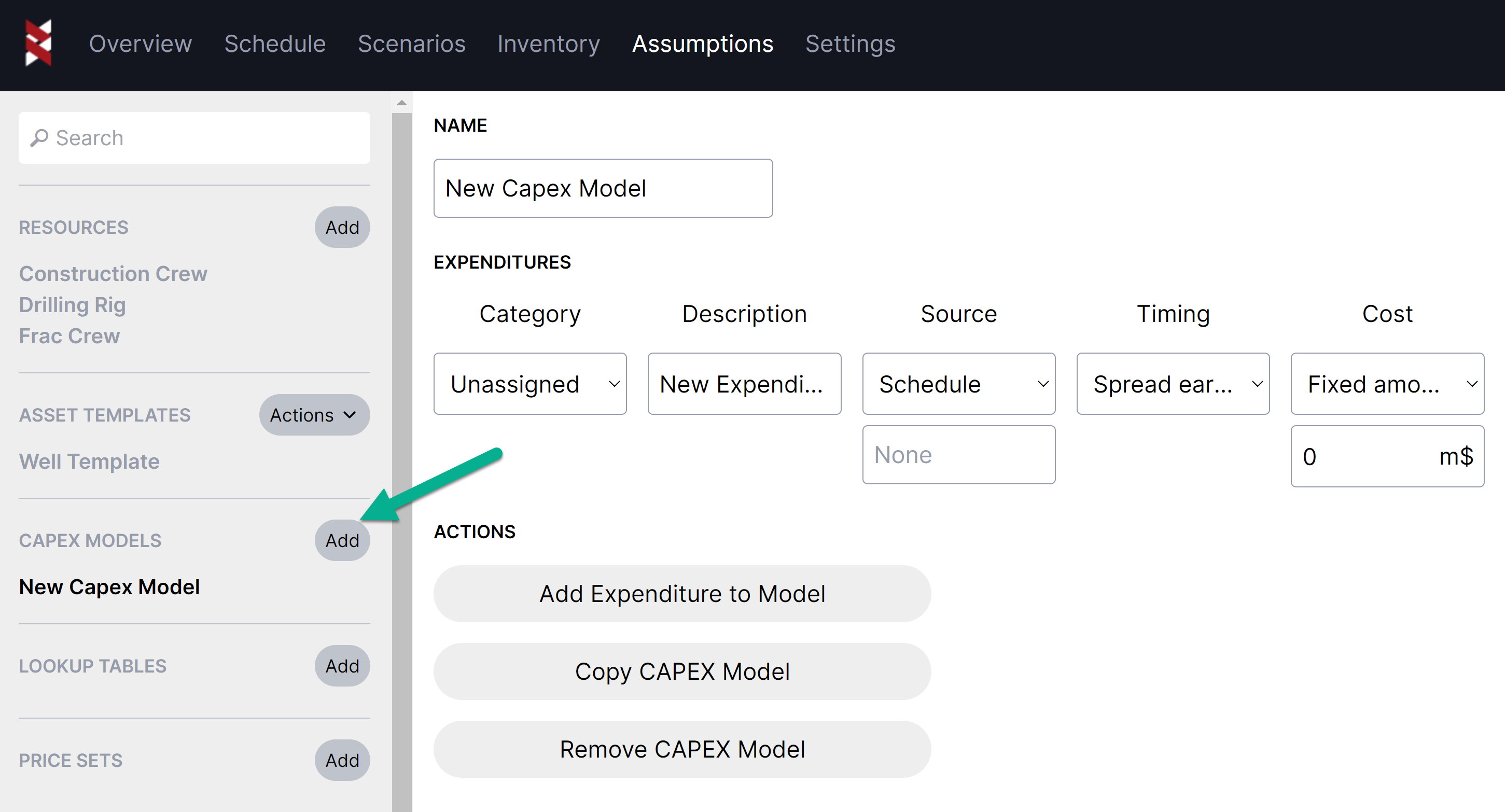
To get started forecasting capital, go to Assumptions > Capex Models, and hit "Add" to create a new model. Give it a name, and hit "Add Expenditure to Model" for any category that you need to track.
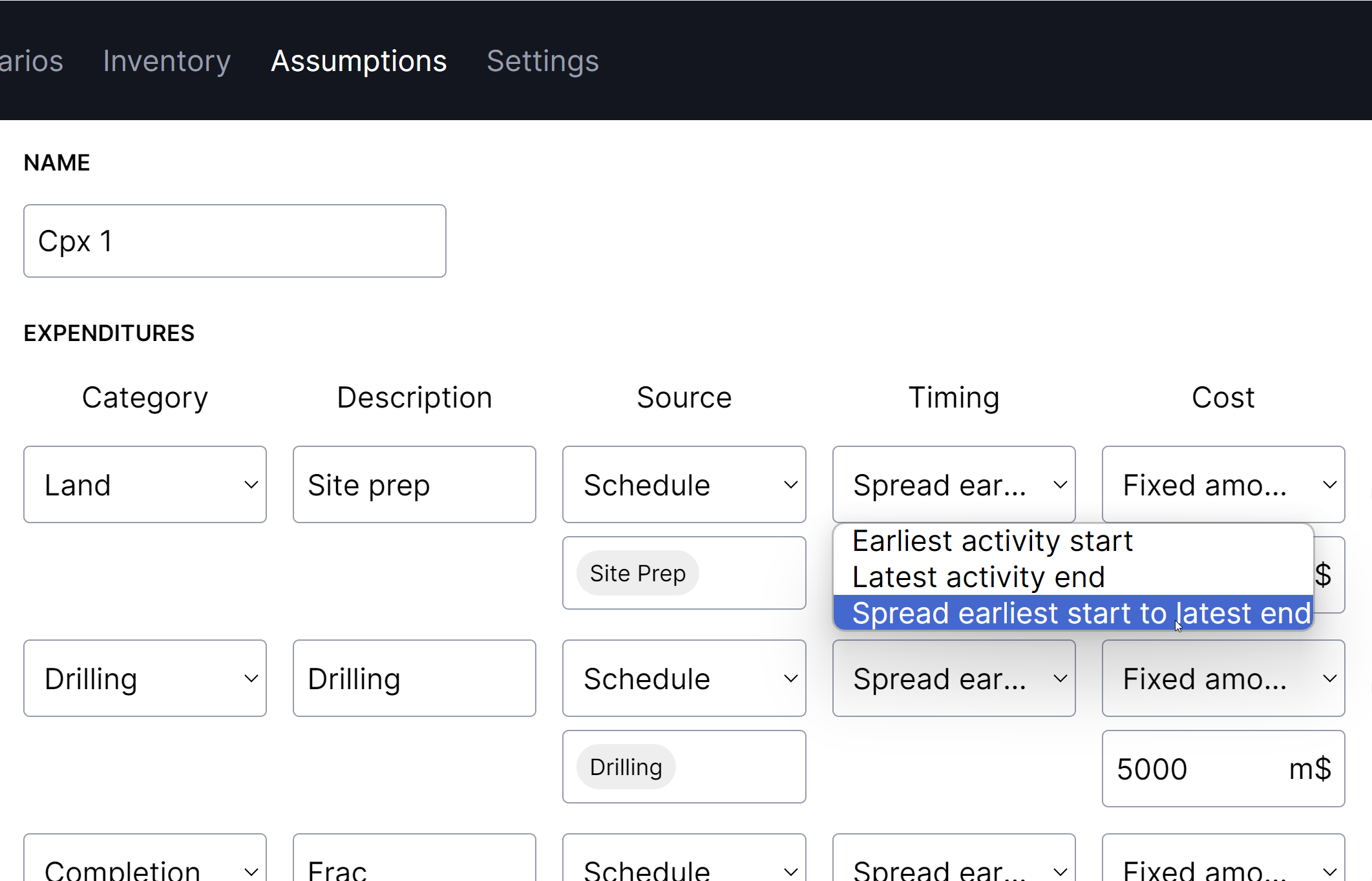
Under Source, select the activity(s) that incurs the cost (or drives the timing of the cost) and the Timing to control when precisely it will occur. Multiple activities can be selected with the timing setting "spread earliest start to latest end" and the cost will be allocated across the total duration of those activities.
Enter the cost amount choosing from either a fixed amount or calculated.
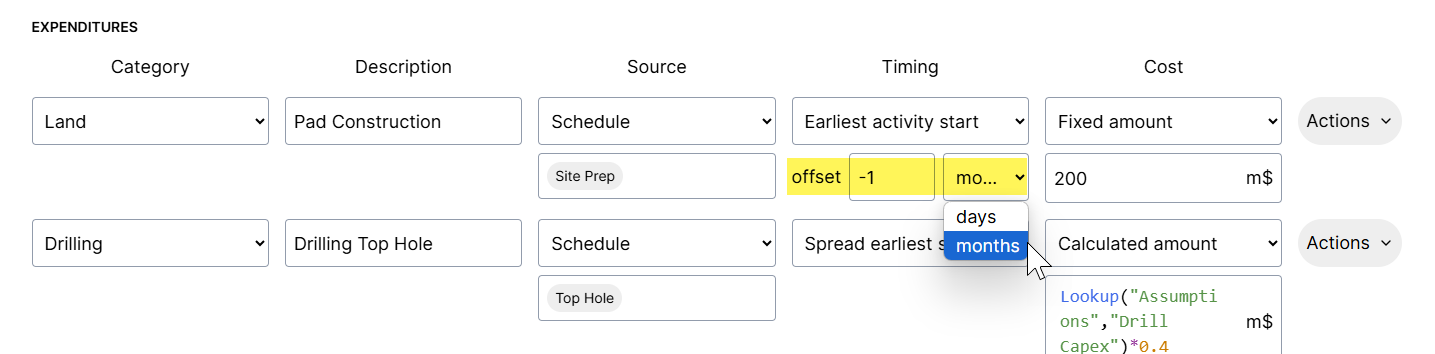
For "Earliest activity start" and "Latest activity end" timing options, you also have the ability to offset the timing by a number of days or months.
In the example below, Pad Construction cost will hit a month prior to the start of the "Site Prep" activity.
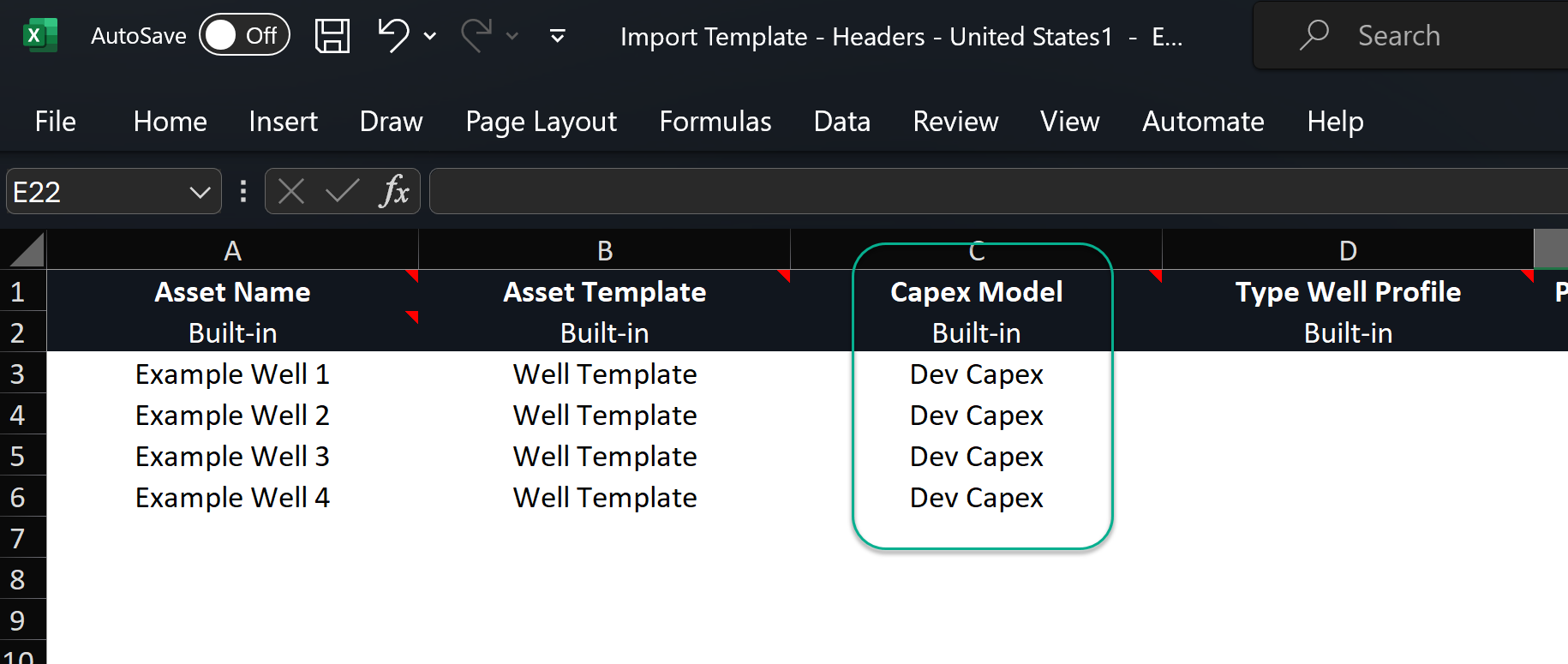
Once you have a capex model defined, you can then assign it to inventory wells and capital will automatically be displayed for each asset in the inventory section. You can select it manually in the inventory tab, or more easily apply it in bulk using import from excel
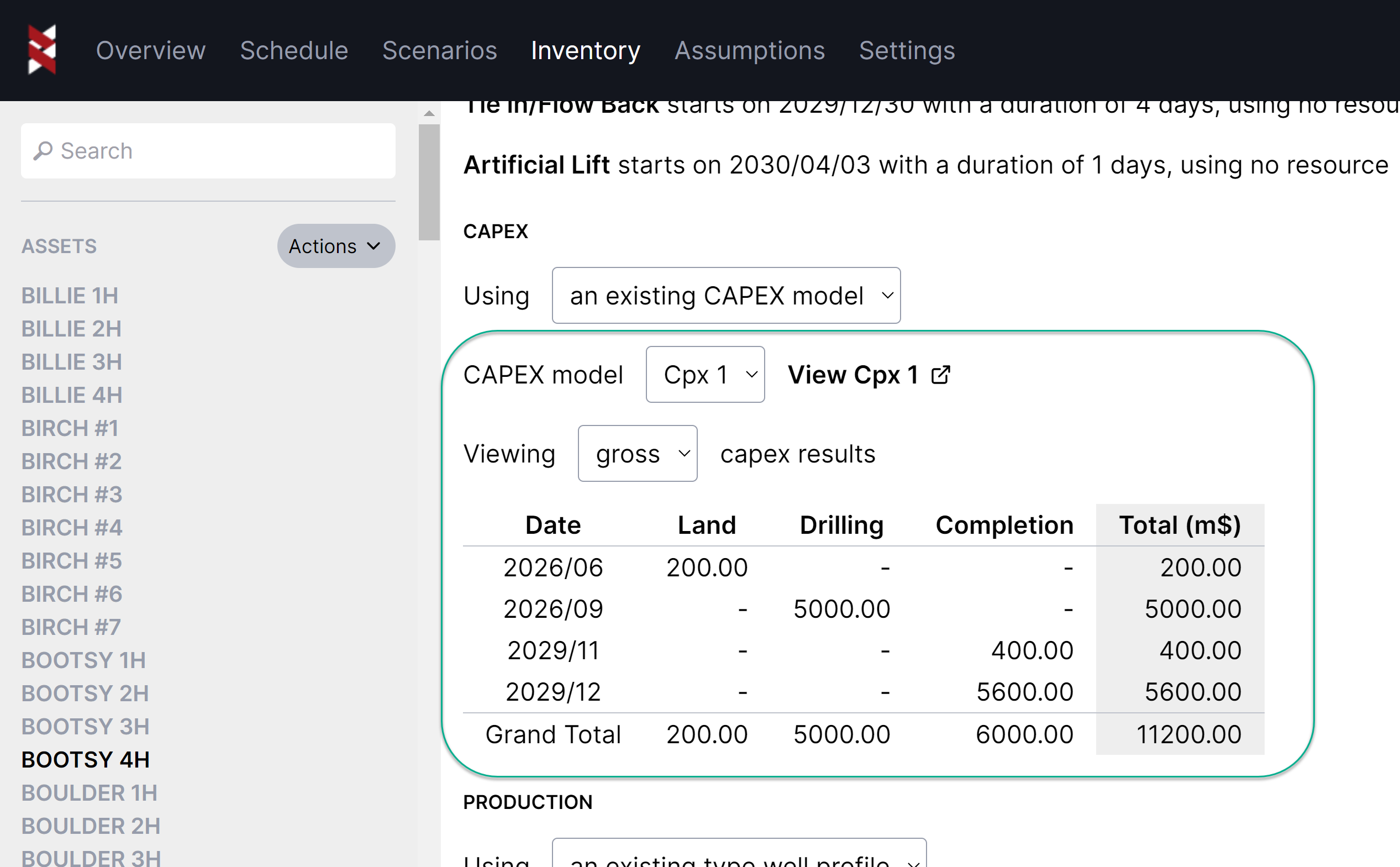
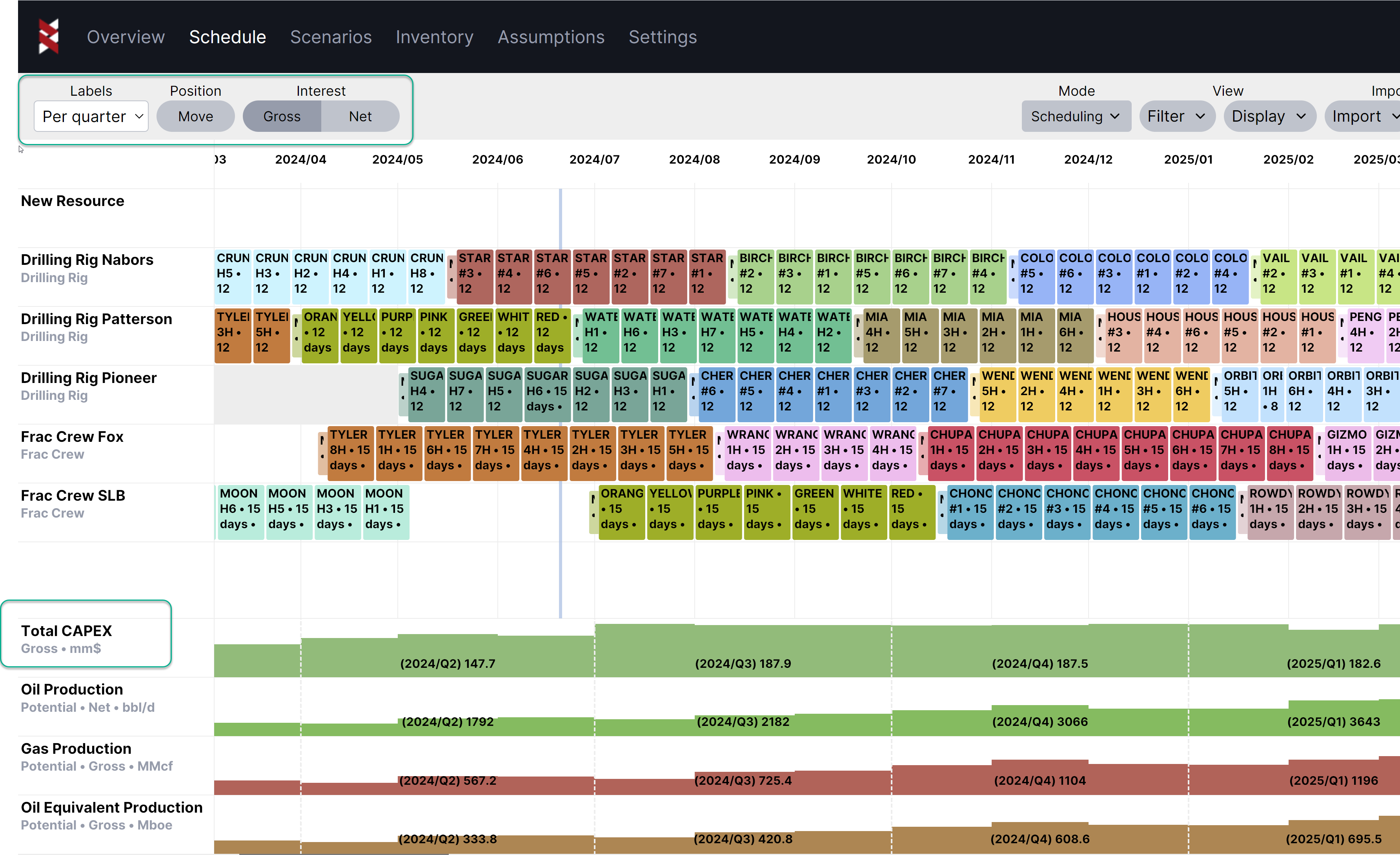
Capital for the entire plan will appear in the metrics section of the schedule. Click on the "Total Capex" label to expose time period and interest options
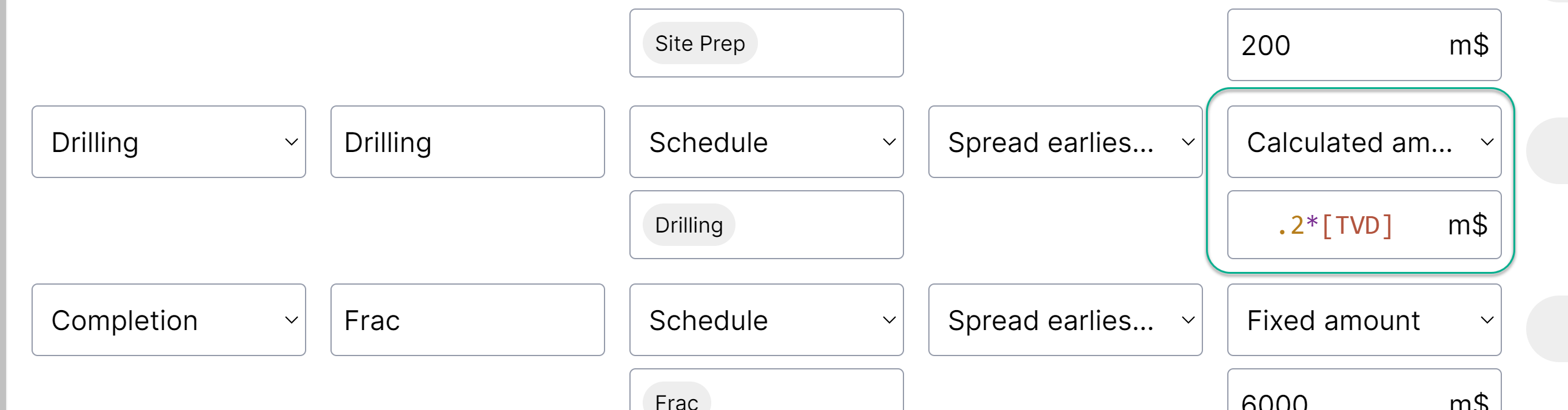
Calculated cost example:
Say you have TVD (total vertical depth, ft) as an attribute in your inventory, and you know your average cost is $200 per foot drilled.
You can calculate the cost like this:
In addition to doing simple math, you can also lookup values from a data table. See an example using lookup tables in functions here