
Planner Release Notes V2.0
This release focuses on greatly improving scheduling workflows (simops restrictions, Schedule tab improvements), supporting more planning functionality (production limits, revenue, BOE), and supporting more integrations (Parquet/Azure/Snowflake). Check out the highlights for version 2 below.
Version 2.0
🗺️ Simultaneous Operations (SIMOPs) Restrictions and Coordinates
Do you need to consider nearby operations when it comes to short-term D&C scheduling? Lots of people do this manually or in custom tools, and sometimes they get caught off guard when it's time to rig-up but there's a frac job happening too close for comfort.
In Planner version 2, you can apply simops restrictions that will use wellbore distances to automatically adjust your schedule to avoid conflicts. It's simple, it's fast, and it can help make sure your plans will work for operations.
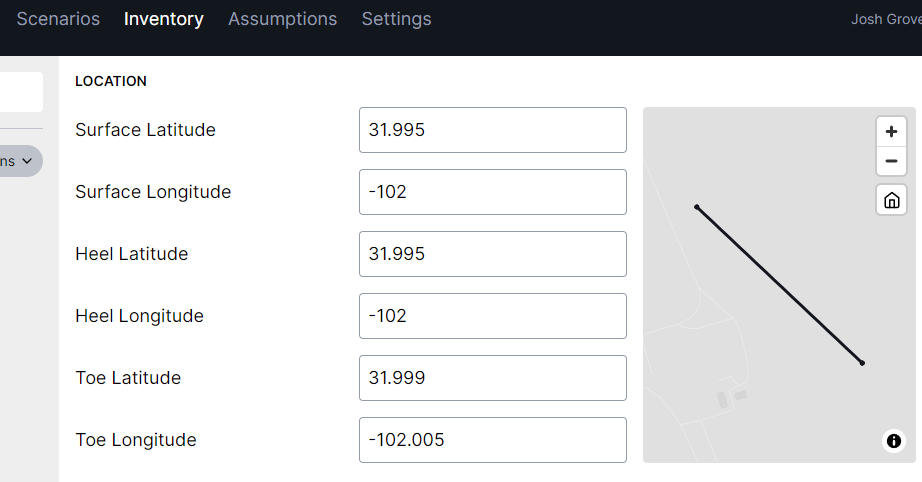
Well coordinates can be imported or updated in the Inventory:
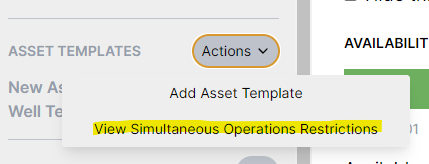
You can view or update simops restrictions under the Assumptions tab:
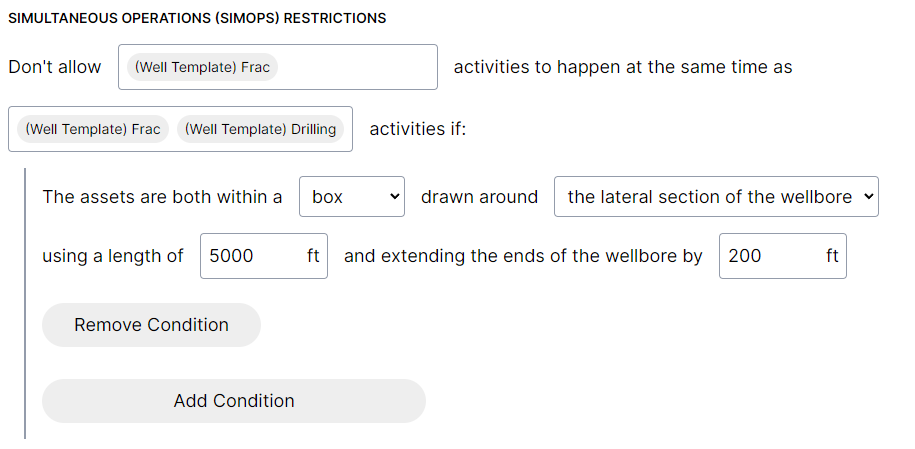
Restrictions are applied based on wellbore distances or other conditions (e.g., nearby frac for the same formation). For example, to avoid fracing while drilling or fracing is happening nearby, it might look something like this:
If you'd like help setting up simops restrictions or have any ideas for how it could work better for your situation, please let us know!
📈 Production Limits and Curtailment
Planner v2 supports production limits!
Production limits are currently attribute-based, which means you can set production limits that apply to all wells, or wells with a specific attribute. For example, "limit total oil production to 1000 Mbbl/d for all wells" would look like this:
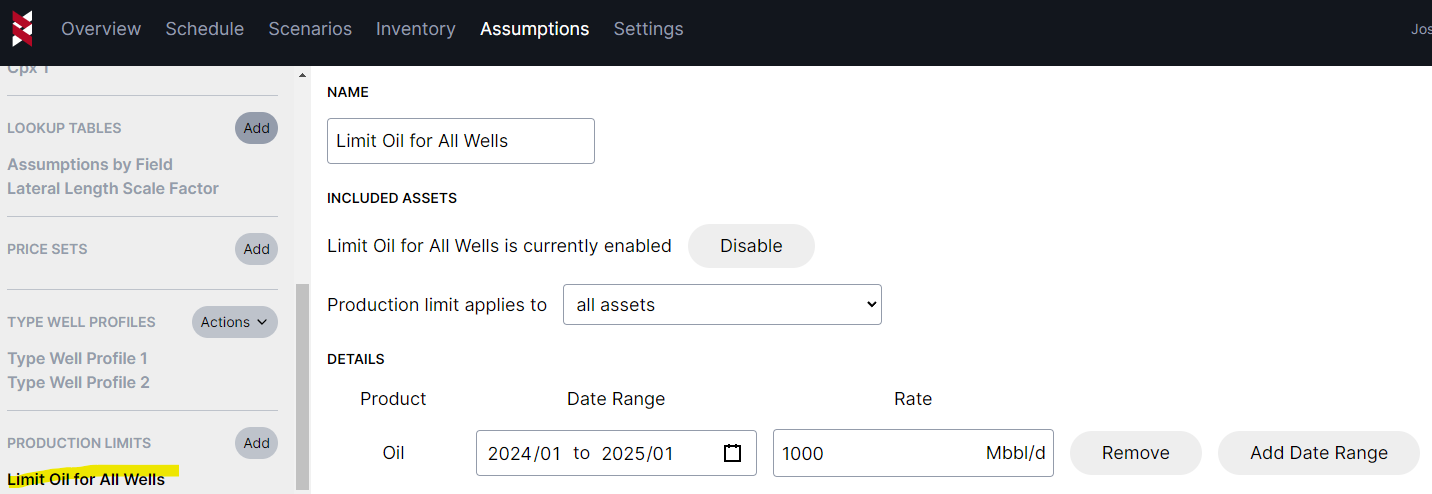
If the limit is reached, production will be deferred through time to preserve EUR per well.
You can toggle between potential vs. limited production on the Schedule tab. Select the production metric and toggle between them:
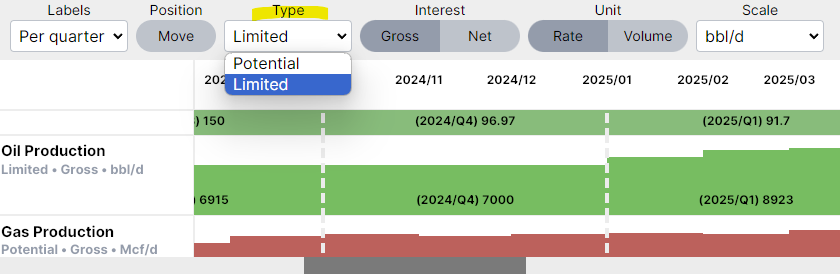
Please note that all exports will use the limited production (in other words, the curtailed production after all limits have been applied) instead of the potential.
This is the first of several production forecasting improvements that are planned over the next few releases. The improvements aim to help you create more realistic forecasts and understand the implications between multiple scenarios. Stay tuned for future production improvements or reach out if you'd like a sneak peek!
💰 Revenue
Most operators are interested in understanding how schedule changes impact overall plan economics. For example, they appreciate being able to see how rescheduling a pad affects quarterly capex as they move the pad around the schedule.
We're happy to announce that Planner version 2 adds support for revenue calculations, so you can now see the live revenue impact of schedule changes.
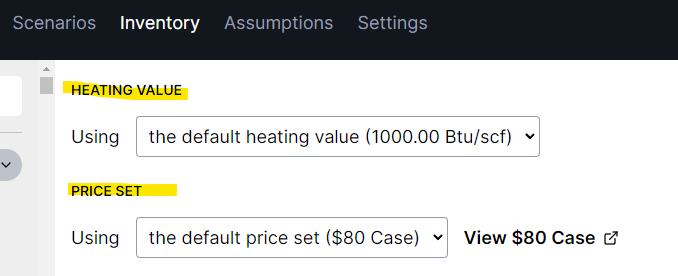
A few parts were added to the Planner to make revenue possible. For each well, you can select a heating value and price set, or use defaults across the entire plan:
Price sets can be imported from Excel or added manually under the Assumptions tab:
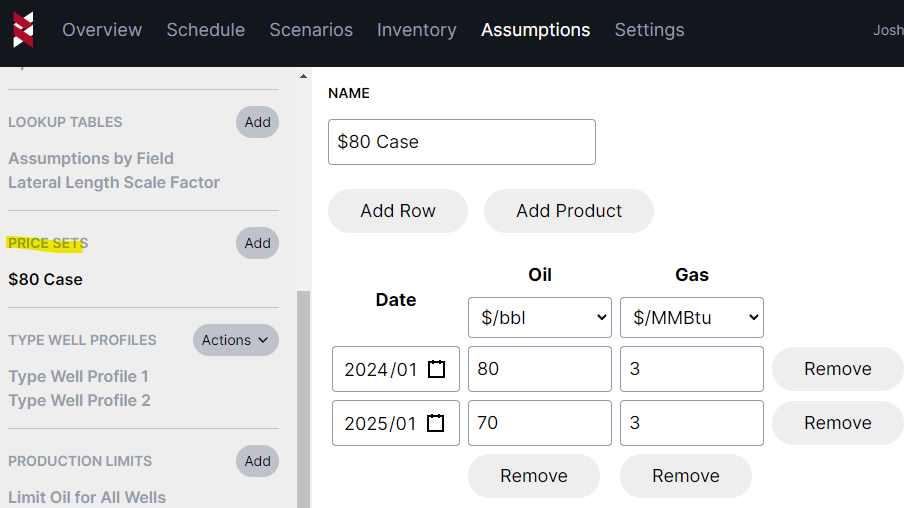
As soon as you've added a price set, you'll see a new revenue metric appear on the Schedule tab. This works the same way as the capex and production metrics, and will show you revenue changes in real-time as you drag and drop activities around.

You can also export revenue to Excel the same way you'd export other results. That also happens to be a great segue into the new Parquet export option - keep reading to see more on that!
📩 Export to Parquet, Azure, Snowflake
The Planner has always been designed to integrate with tools you're already using. Integrations are first-class and the goal is to support whatever integrations people would like.
Some people have been looking for better ways to export Planner results out to their Azure environment or load it into Snowflake. To better support that workflow, Planner version 2 has added a Parquet export.
If you haven't heard of Parquet before, it's a file format that allows data (like Planner results) to be efficiently stored and transported for use in other places. For example, PowerBI has a connector for Parquet, Azure has built-in options for handling Parquet files, and Snowflake is able to easily load Parquet files.
Currently the new Parquet export can save Planner results locally (to your computer or a shared network drive) or Azure Blob Storage. Local exports can be a useful way to load results directly into PowerBI or other analytics tools without going through Excel. Azure Blob Storage exports can be useful for people using Azure environments (Fabric, Data Factory) or Snowflake that would load these Parquet files for further processing or analytics.
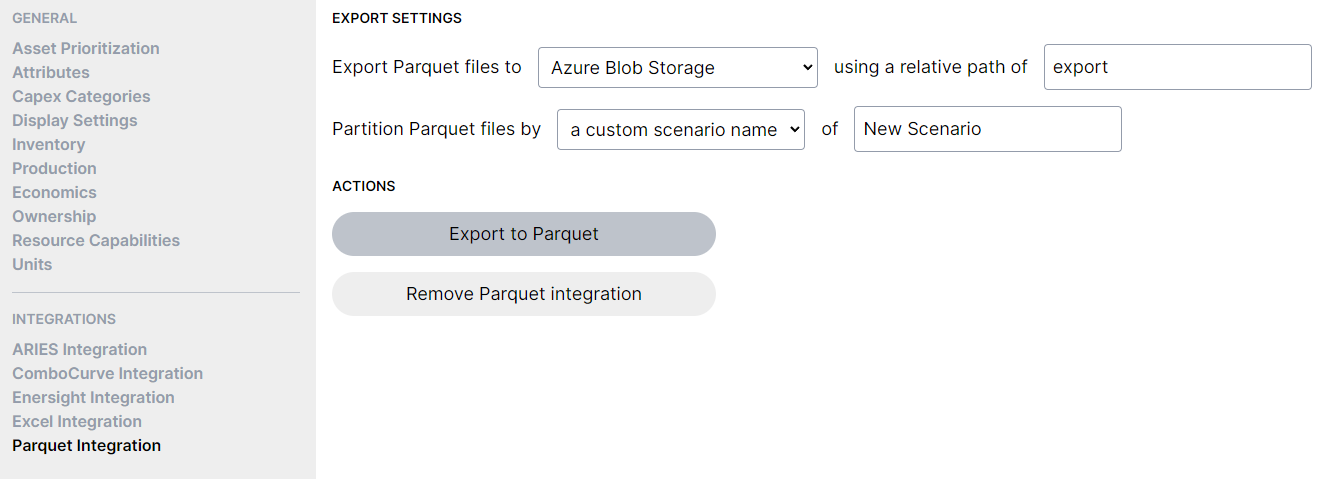
For example, locally exported Parquet files being loaded into PowerBI would look something like this (similar to the existing Excel exports):
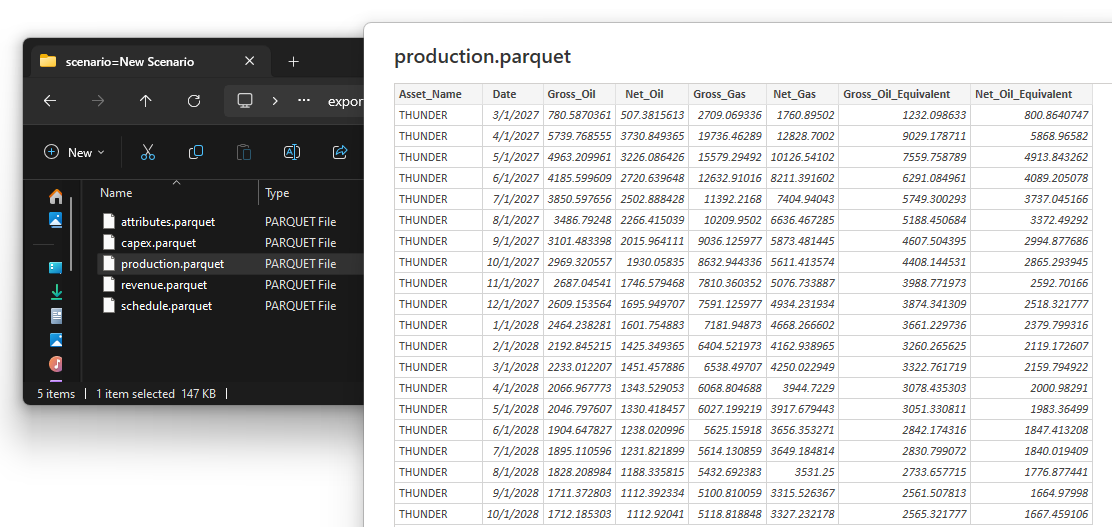
Please reach out if you'd like help setting this up, or if there are other environments you'd like to use with the Parquet export.
🟰 Oil Equivalent (BOE)
Many planners use barrel of oil equivalent (BOE) as a key metric for evaluating plans and targets. Some people would export production results then calculate BOE volumes outside of the Planner, so it seemed natural to improve that workflow by adding BOE to the Schedule tab.
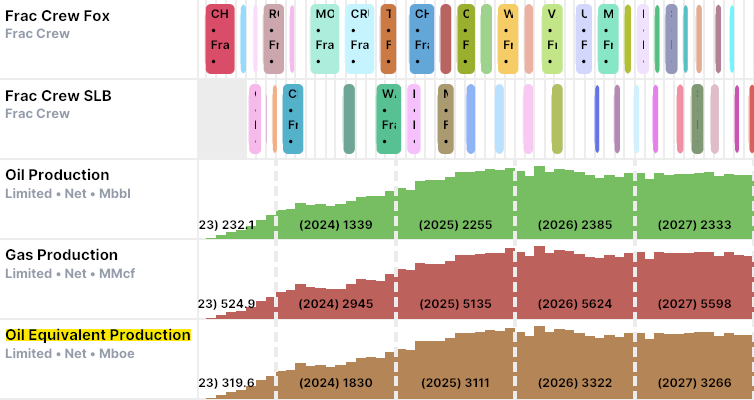
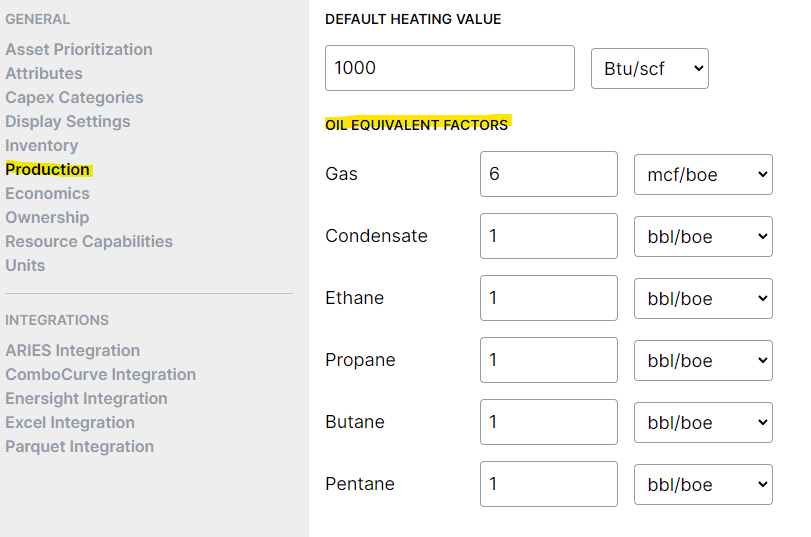
You can change the factor used for BOE conversions under the Settings tab (for example, using 5.8 mcf/boe for Gas instead of 6):
Oil equivalent volumes are also included on all exports for convenience.
🔛 Planning Mode Enabled by Default
After all of the fantastic feedback about planning mode and some small adjustments, planning mode is finally available by default! Previously a cheat code was needed to access planning mode.
Planning mode will be active by default after updating unless you switch to Scheduling mode. You can switch modes on the Schedule tab using the Mode dropdown.
If you still want Scheduling mode to be your default, don't worry! The Planner remembers the last mode you've selected, so it will stay that way whenever you reopen the Planner.
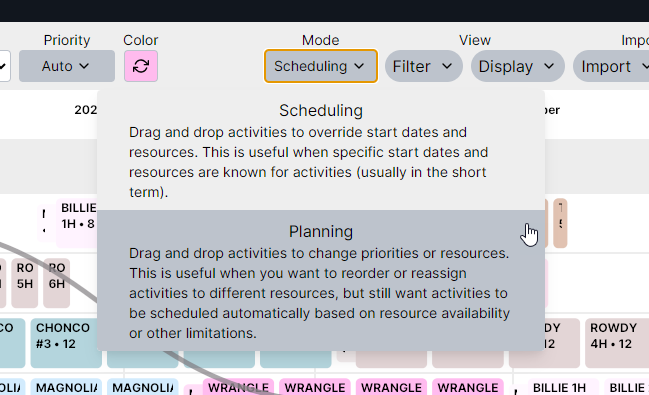
If you haven't tried planning mode yet or would like a refresher on how it works, please reach out!
🔗 Subtemplates (Subsets of Asset Templates)
This functionality is easier to explain with an example. In some development plans, you might have a situation like this:
You want to develop new wells, but also perform nearby refracs as part of that development. You want to control the order that the refracs happen relative to the new development activities.
This could be represented with an asset template for new development wells (activities including drilling, frac, etc.), and another template for refracs (only a single frac activity), although it can be tricky to accomplish the ordering and relationships between asset templates that you want.
Planner v2 introduces an alternative approach called subtemplates. Subtemplates allow you to specify a subset of activities to be used from an asset template. In this example, you could have a single asset template containing all development activities. Then a subtemplate could allow refracs to only use the frac activities from that template.
The benefit of this approach is that all of the regular relationships and groups defined within an asset template can be shared between the development wells and refracs in this case.
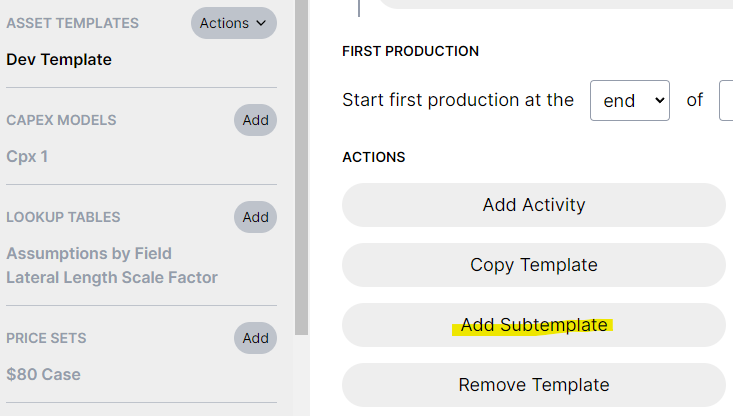
Subtemplates can be added at the bottom of an asset template:
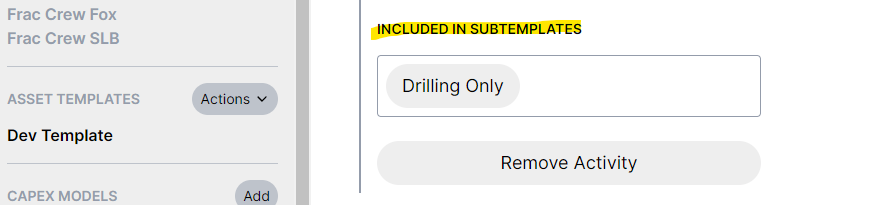
You can choose which activities to include on each subtemplate:
In the Inventory, you can choose whether a well should use all activities from the asset template, or a subtemplate specifying a subset of those activities:

Subtemplates can also be specified in bulk with the Excel import.
If you'd like help setting this up or are curious if subtemplates could help with your plan, please reach out.
Also, if you don't need subtemplates right now - no problem! You won't see them anywhere except the button at the bottom of your asset template.
📊 Metric/Resource Labels
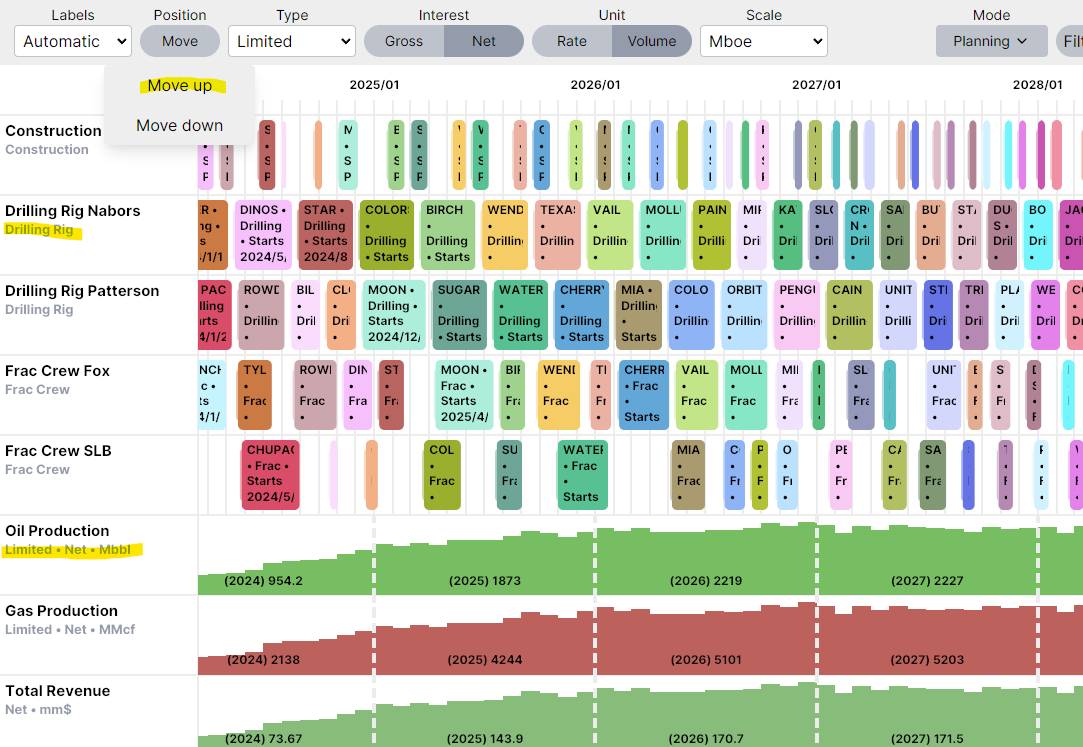
Some people asked if it would be possible to simplify the metric period labels. Planner v2 moves the unit and some of the metric details like Gross vs. Net and Potential vs. Limited under the metric name. Resources were also updated to include their capabilities under the resource name.
With the new revenue and oil equivalent metrics becoming available in v2, it also seemed like a good time to allow reordering metrics using a new "Move" option.
✅ Filtering and Searching
Have you ever wished it was easier to see what parts of your schedule have been manually adjusted vs. auto-scheduled? Well, now you can use the filter option to easily identify any activities with an override. This makes it easier to visualize which activities have been updated manually, and quickly switch them back to auto if the override isn't needed anymore.
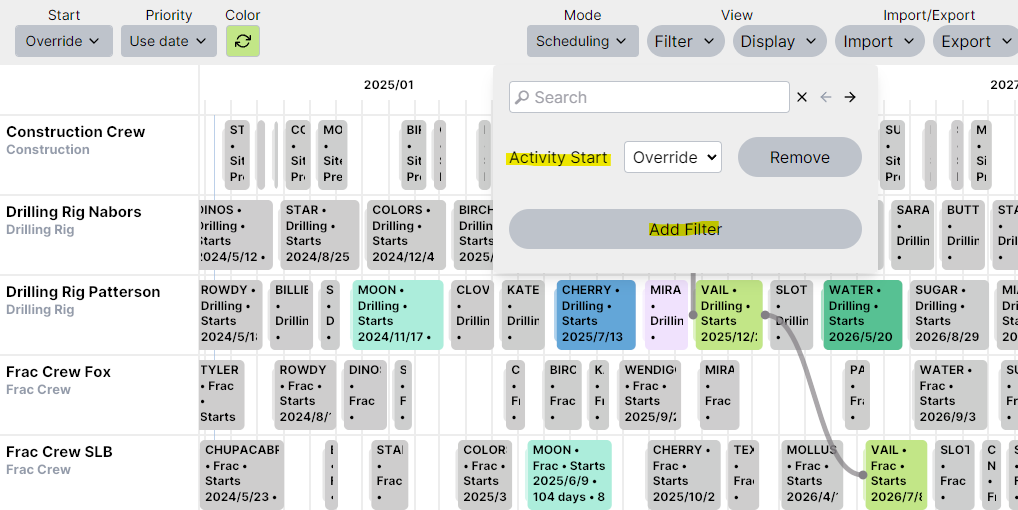
This can also be helpful to troubleshoot unexpected gaps between activities. For example, in the screenshot above, we can see that the MOON and VAIL pads have overridden start dates for drilling and frac, so the Planner isn't able to schedule those fracs sooner.
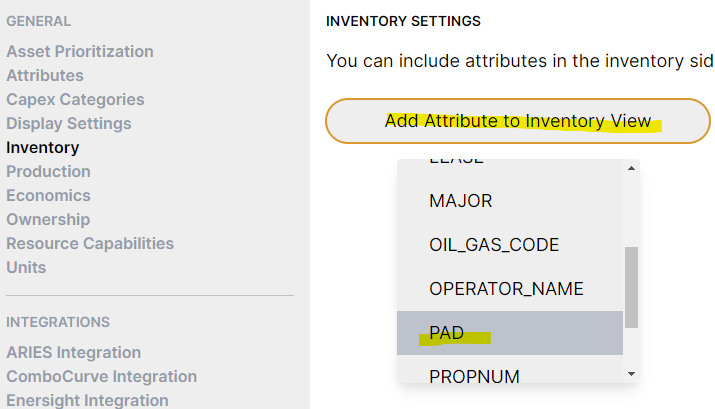
The Inventory tab also received a major upgrade in Planner v2. You can now select attributes to include on the Inventory sidebar:
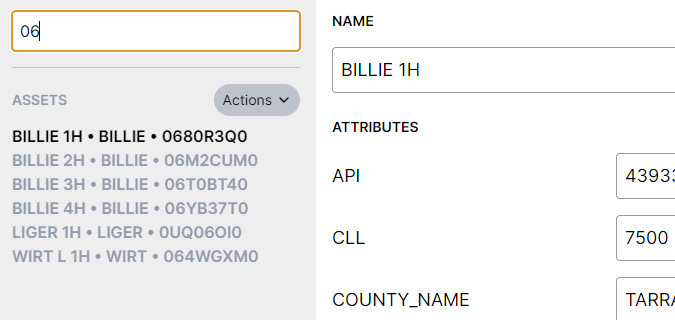
These attributes are searched when searching the Inventory, which makes it really easy to find wells by pad, UWI, or any other attribute you're interested in:
👀 Display Activity/Group End
Previously you could select an activity or group to see their end date, but a few people mentioned that it would be convenient to see the end date directly on the schedule. Planner v2 adds options to add the activity or group end date to the schedule.
You can include end dates under Display Settings:

Then you'll be able to see the end dates on your schedule:

🏎️ Performance
Like always, the Planner calculation will continue to become faster each release. Every release dedicates some time to performance optimization and benchmarking any changes. We know how important it is to be able to schedule and plan in real-time, and that won't change.
Performance improvements like this make it possible to continue adding new capabilities into the calculation (simops, revenue, production limits) while running faster than previous releases.