ARIES Integration | Import & Export
Planner has a two way integration that can tie directly to your ARIES DB. The same configuration window is used for both, and it can be found under Settings > Integrations > ARIES Integration.
Planner supports connections to the following ARIES database types:
Microsoft Access
SQL Server
dBASE
Excel
A typical import use case involves pulling well header data and decline forecasts into the Planner when ARIES is the system of record for your inventory, well attributes (well name, PROPNUM, WI/NR, etc.) and optionally production forecasts.
A typical export use case involves performing various planning exercises within the Planner, and then sending schedule results to ARIES for further analysis or sharing of plans and scenarios.
Currently, only well header and schedule results are sent to ARIES.
Import from ARIES
Wells can be imported into the Planner from ARIES in a few simple steps.
If creating wells for the first time in a new planner project, select the option to "Import Wells from ARIES" from the Overview menu
NOTE: After initial set-up, you can access the integration under Settings > Integrations


Choose the appropriate source type, and click "connect to Data Source"

Select the source database name and hit "OK"

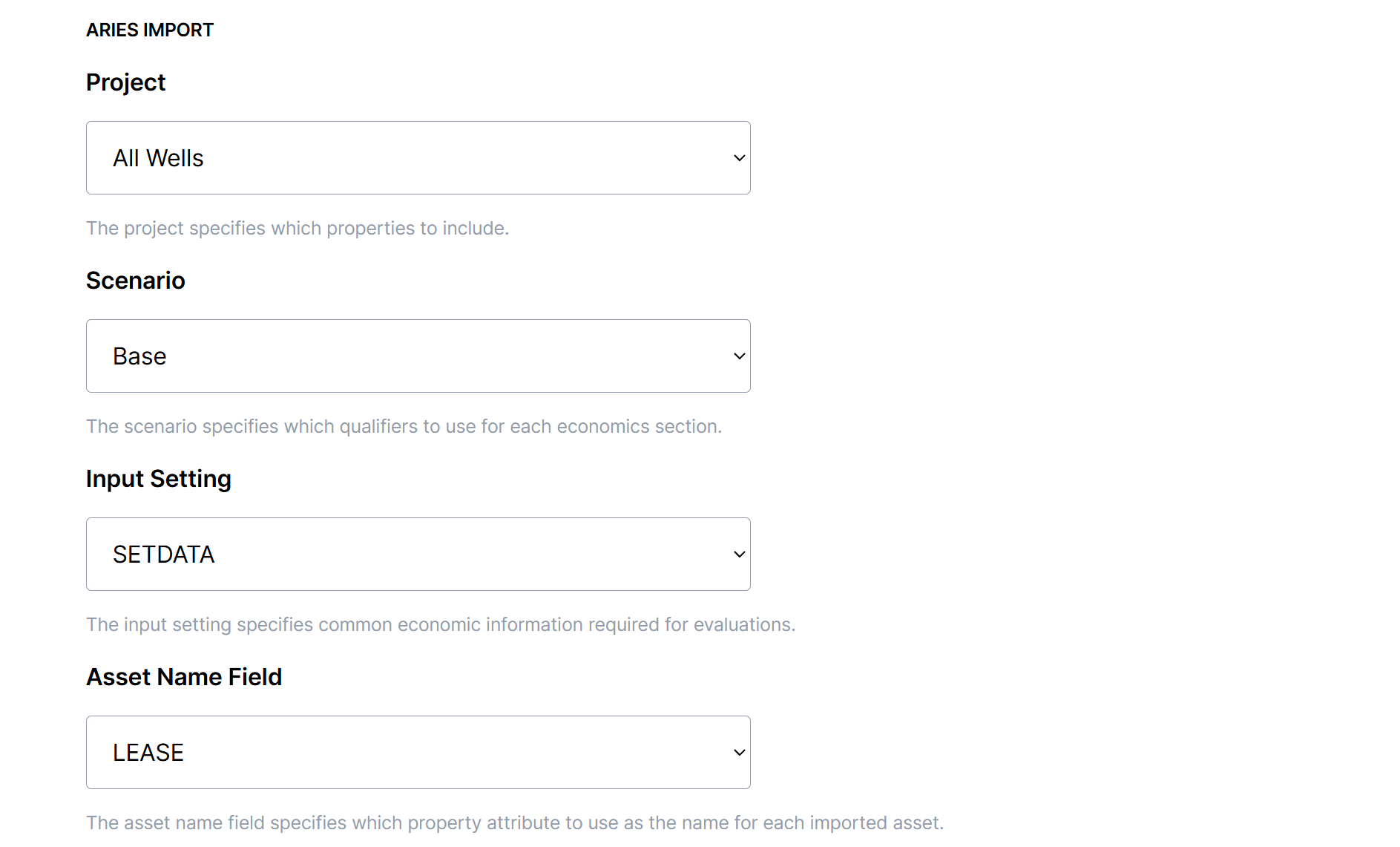
Select the name of the ARIES Project and Scenario that you wish to import. Then, make sure the Asset Name Field is correctly mapped to the property attribute you want to use as the well name
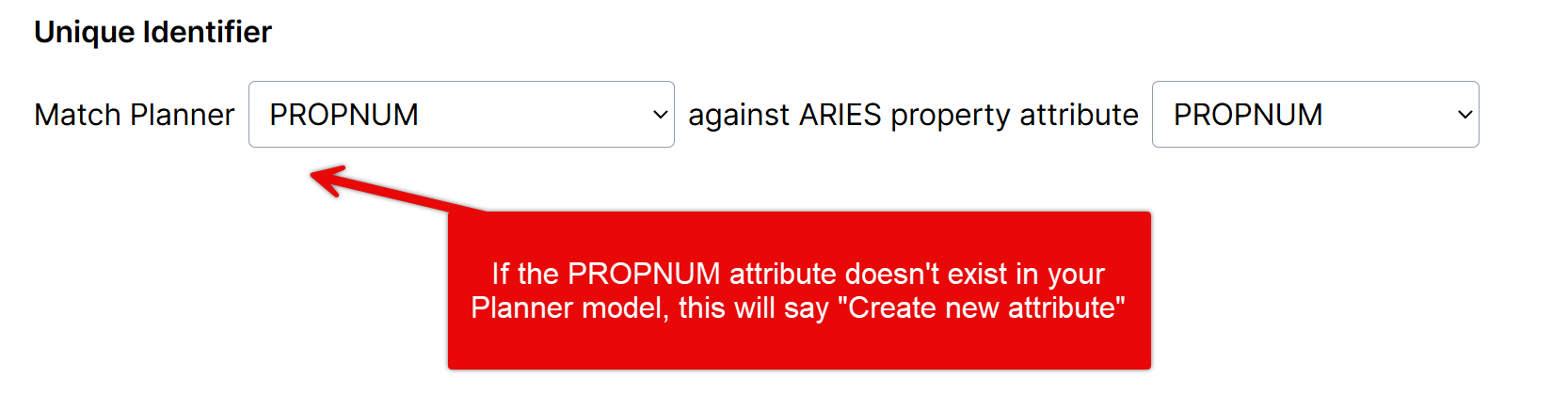
Continuing on the import page, specify a unique identifier to use for the import. Below are a couple of examples that are commonly used:
You can use the Planner Asset Name to match against the corresponding ARIES asset name

Or, you could match a PROPNUM attribute against the ARIES PROPNUM
Next is the asset template mapping. Use this setting to specify which incoming assets should map to a Planner asset template

Below is a typical example that uses conditions to map "1PDP" wells to no template, and "3PUD" and "4PROB" wells to using the "Dev Template". This would result in incoming PDP wells to not be tracked on the schedule, and incoming PUDs and PROB wells to use the Planner asset template and appear on the schedule

7. You can choose to include production forecasts as part of the import by selecting "Add Production to Import"

You will have two options to choose from for specifying production timing for incoming wells:
Planner Timing - Use the schedule result from the Planner to determine when production starts.
NOTE - Make sure wells that have Planner Timing are using an asset template!
ARIES Timing - Use the date that comes from the START keyword in the AC_ECONOMIC table
Similar to the asset template settings above, you can use attribute filters to specify which wells using Planner Timing and which wells use ARIES Timing
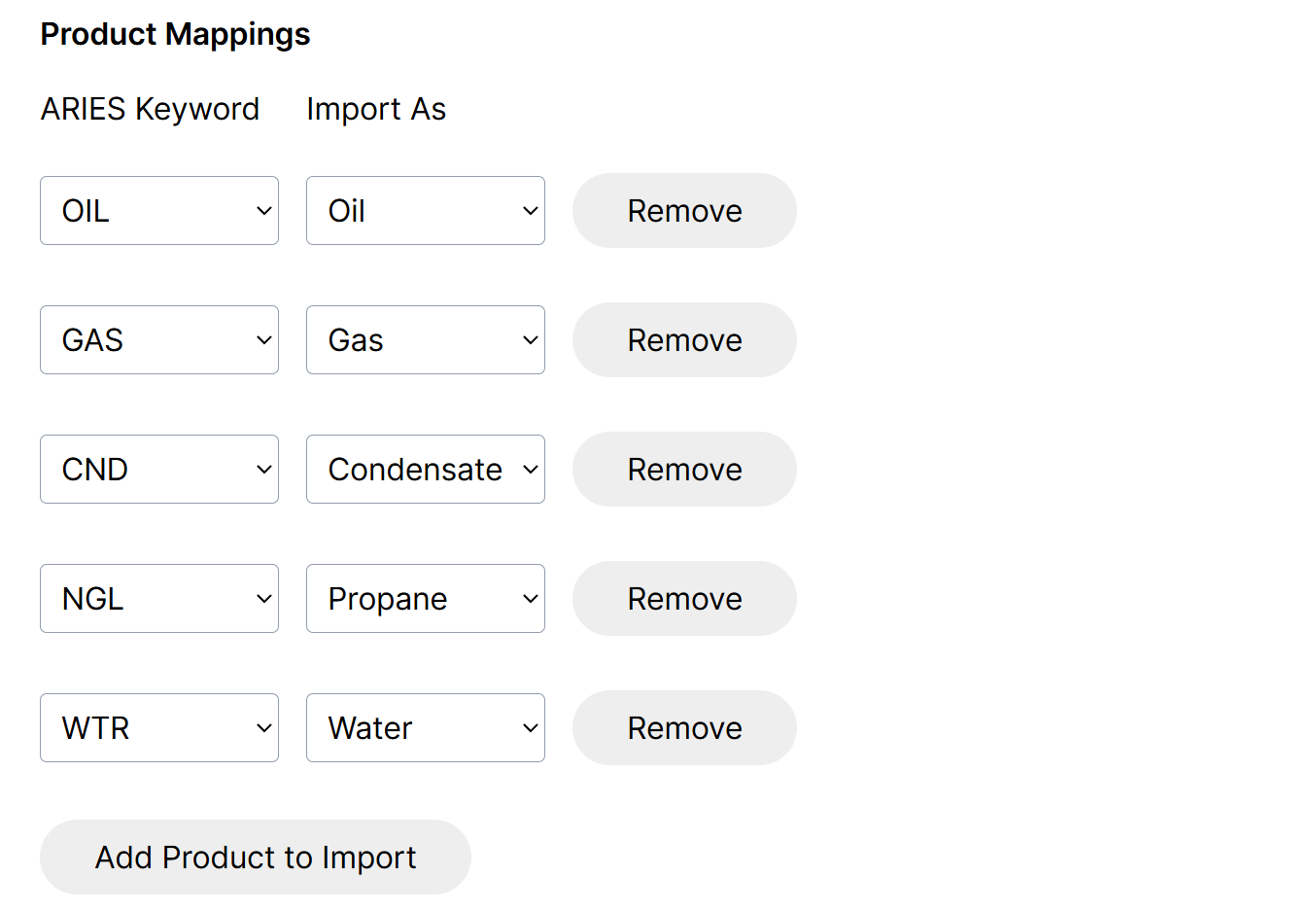
Next is the Product Mappings. Here, you can customize which ARIES products should be imported into Planner as forecasts. The integration will read the ECOPHASE table in ARIES and assign default mappings here that can be overridden.
You can choose to include importing ownership (working interest and net revenue interest) from ARIES. Currently, this will only import initial working interest and net revenue interest from the AC_ECONOMIC table. There are plans in a future release to support importing interest reversions from ARIES, stay posted!

Continue on import mappings to configure mappings between ARIES property table attributes and Planner attributes. To start, this will pull all property table attributes from ARIES, and will suggest creating a new attribute in Planner to match. Use the drop downs to match to a different attribute.
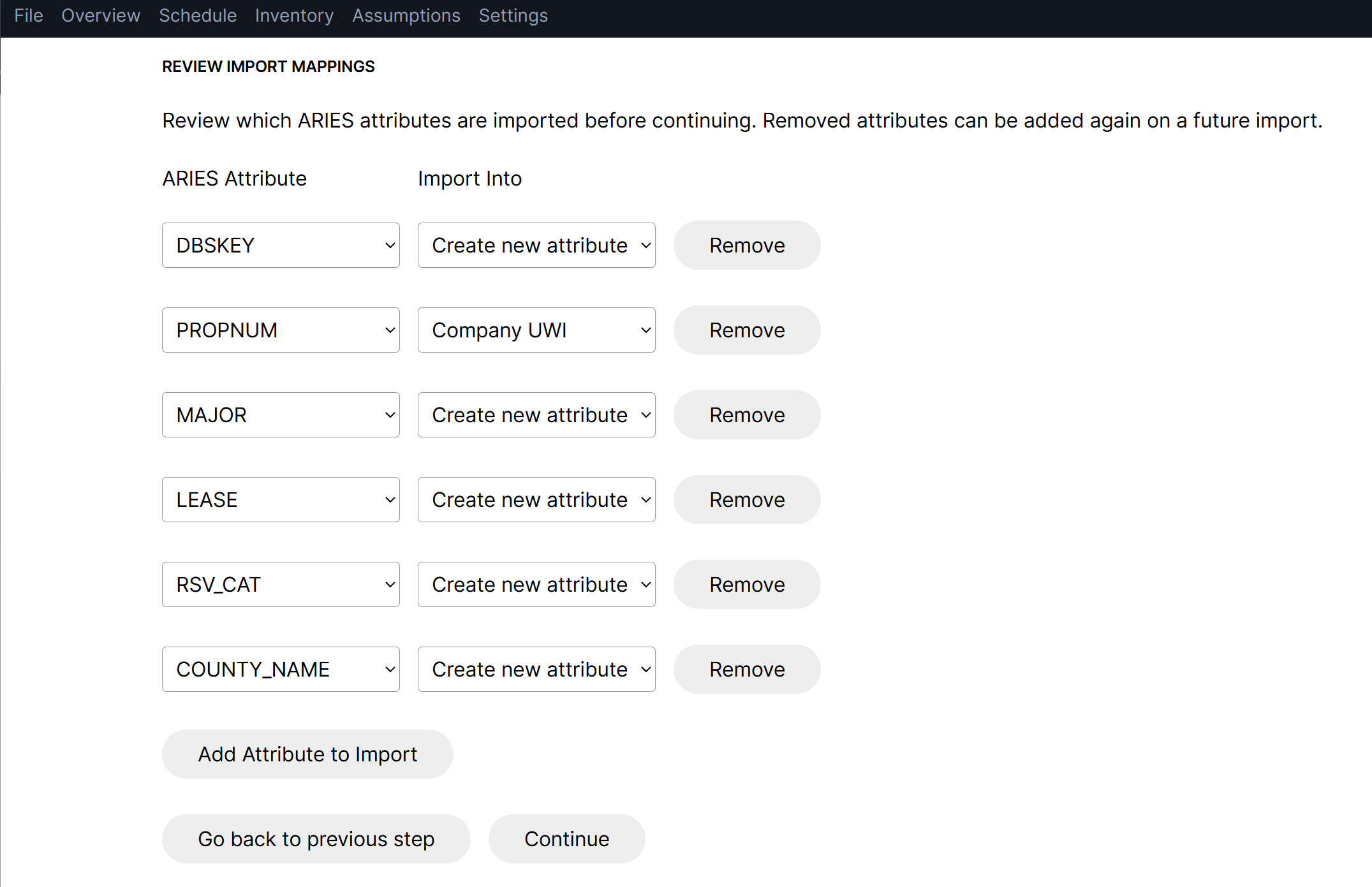
Selecting Continue will move to the import preview page, where you can review the assets that are being imported and any forecast warnings before finalizing the import
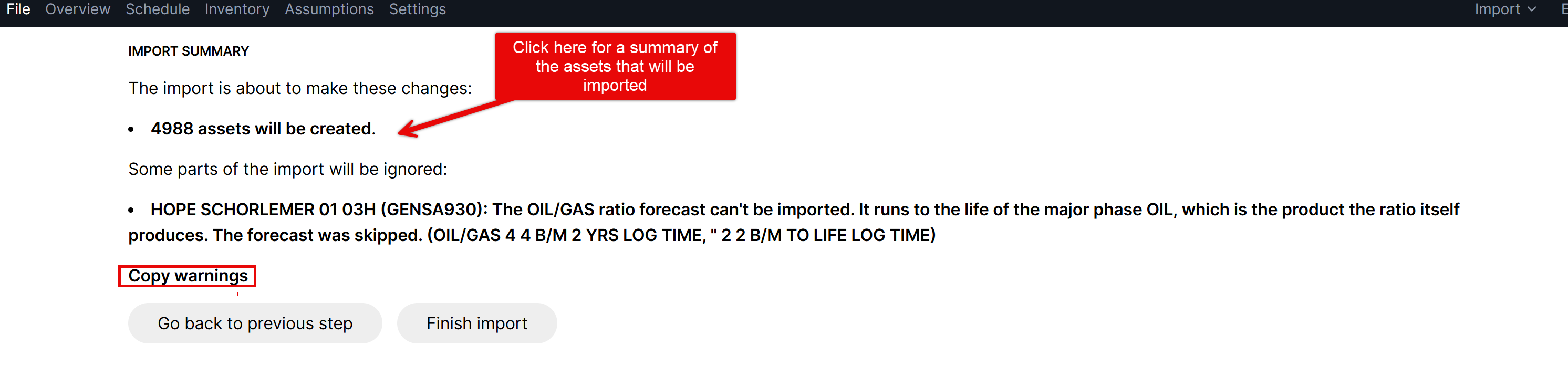
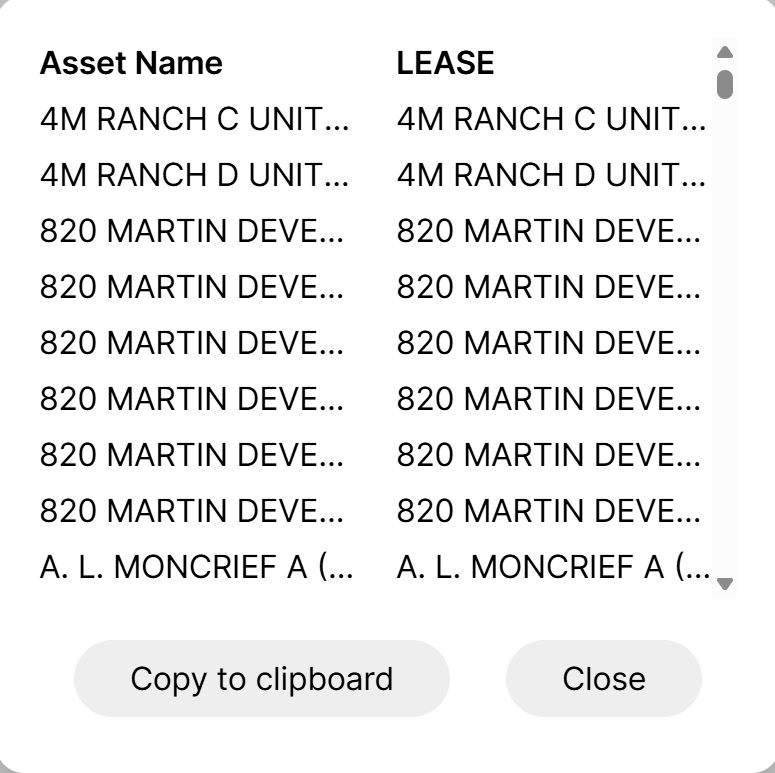
You can click on the "assets will be created" or "assets will be imported" to see a list of the assets and their unique identifiers:
You can also click on the Copy warnings button to export the warnings to Excel
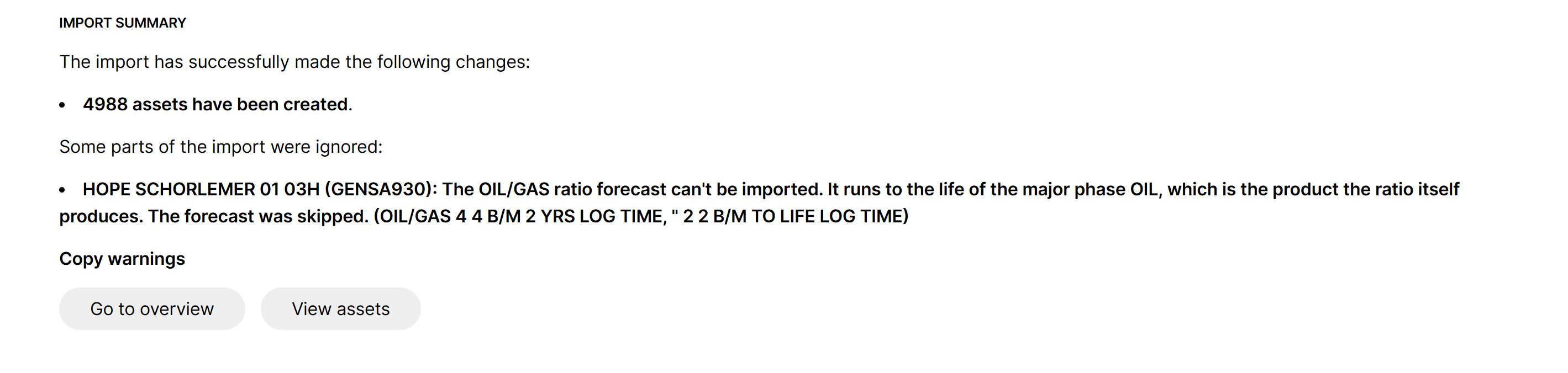
Click Finish import to finish importing the wells into Planner
Export to ARIES
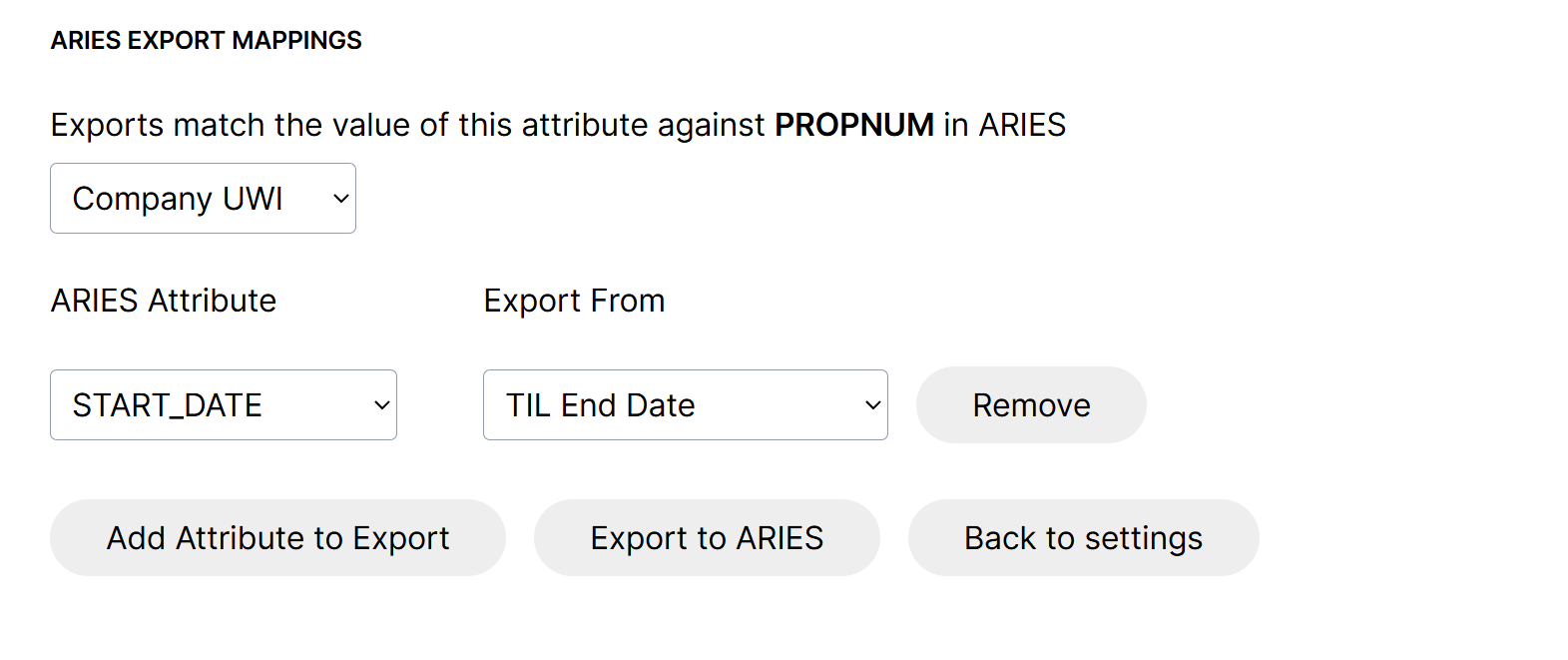
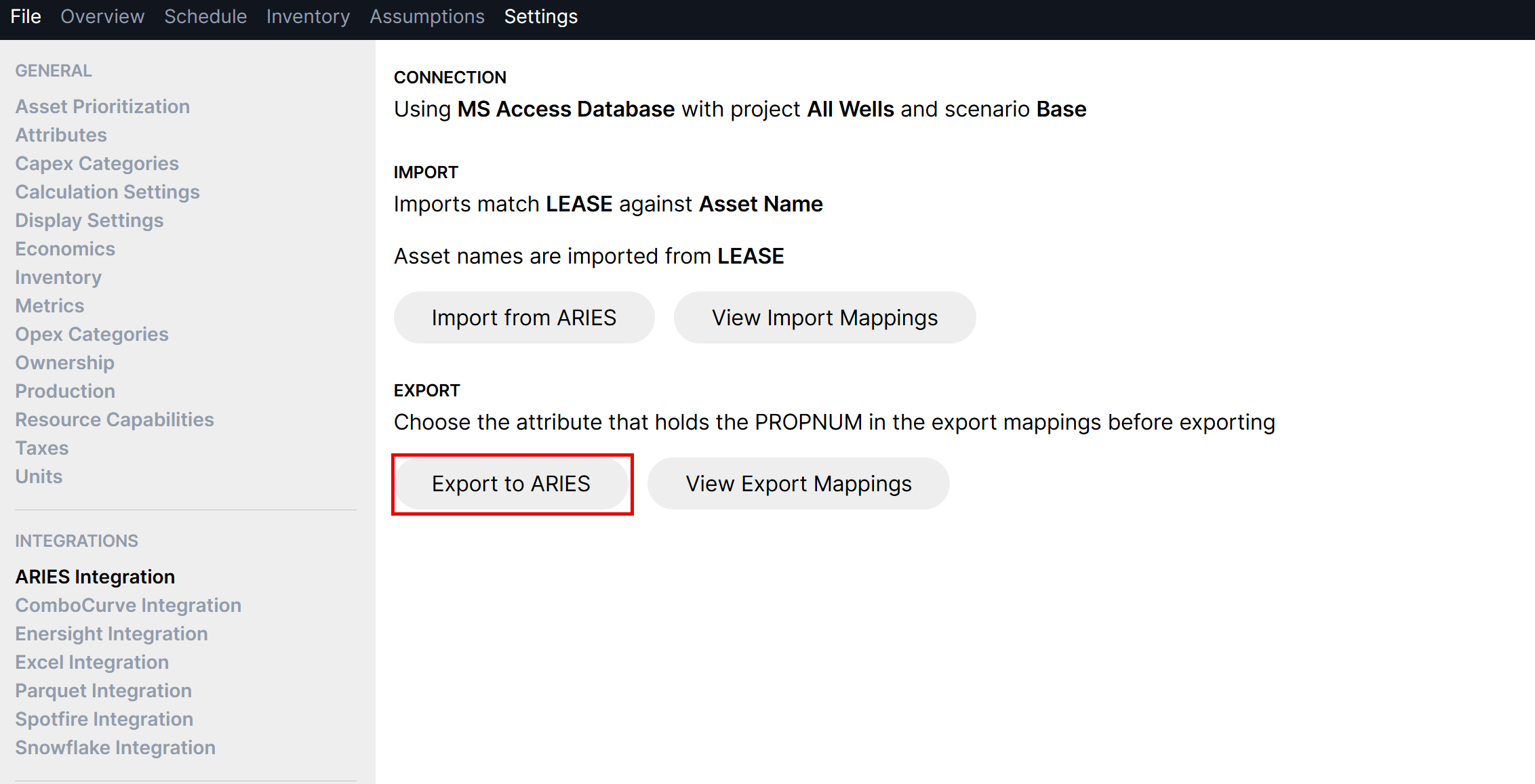
Often, users want to run various Planner scenarios and then send those schedule results to ARIES for further analysis. You can use the same connection settings as the "Import from ARIES" option. Scroll below the Import mappings to find the Export mappings section.
If you've already configured this connection, simply choose the "Export to ARIES" button and select the location of the target database. Schedule results and mapped attributes will be transferred.
This example shows how to map the TIL End Date from Planner to the START_DATE property table attribute in ARIES.