Using Lookup Tables in Calculations
It's really common to have some kind of table containing amounts or factors that vary based on some well attributes. For example, it's convenient to list cost assumptions for all possible well types, then look up those costs per well based on its type.
Example lookup table by well type, with associated durations and costs:
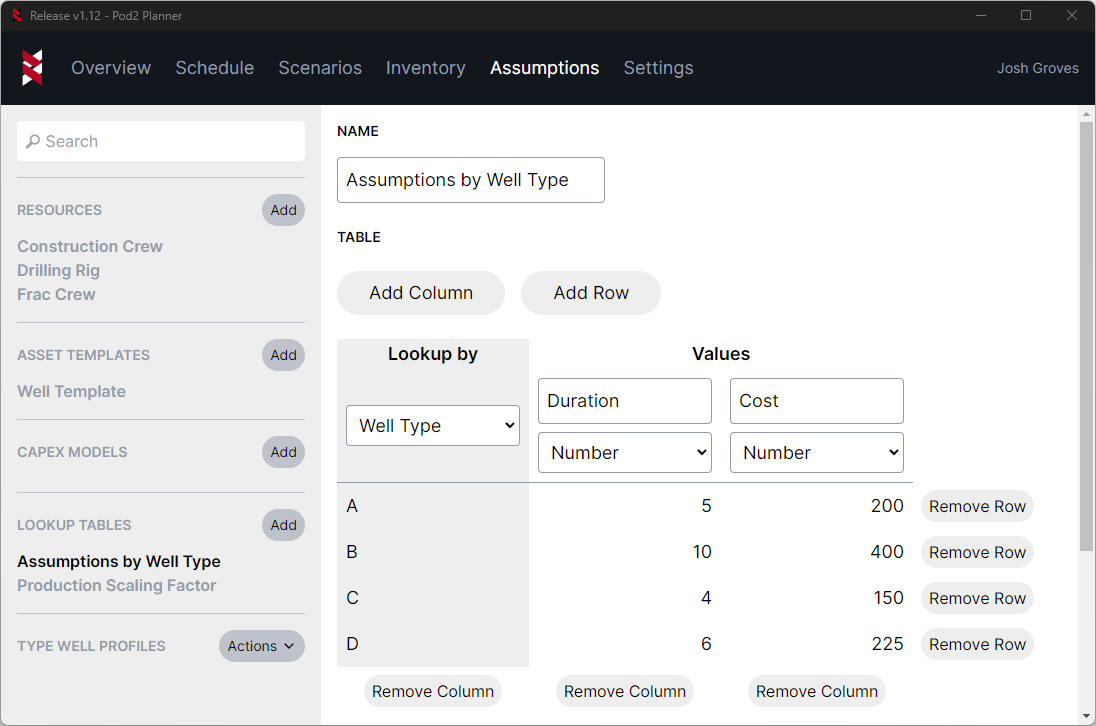
Lookup tables contain lookup columns (any columns with a grey background on the left side of the table) and value columns (all other columns). Lookup columns are text or number attributes you'd like to use when trying to find matching rows (e.g., "well type", "lateral length", "frac stages"), while value columns are the values that you want to look up (e.g., "frac cost", "drilling duration").
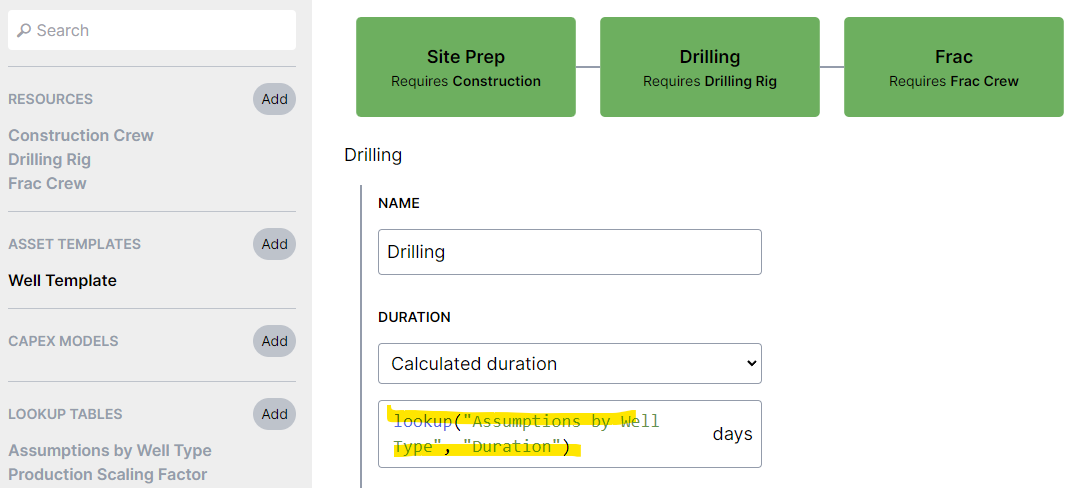
Once you've set up a lookup table, you can use it from any formula using the lookup function. For example, using the lookup table in the screenshot above, you could look up the value column named "Duration" by writing a formula like lookup("Assumptions by Well Type", "Duration"). This would use the well's "Well Type" attribute to find a matching row, then find the duration in that row. In this case, a well with a "Well Type" of "B" would lookup a drilling duration of "10".
If you use a number attribute to look up a number value, values will automatically be interpolated. For example, this can be really useful to use lateral length to interpolate values like duration or scaling factors.
! IMPORTANT NOTE
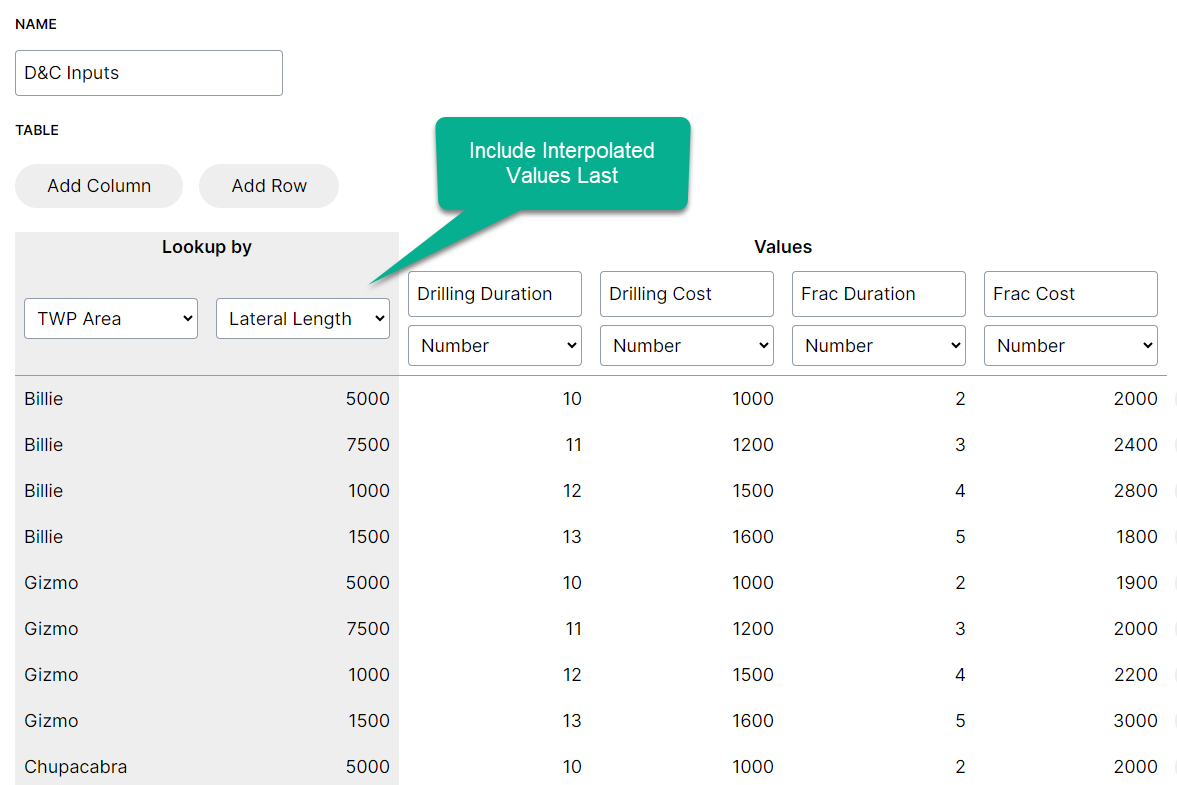
When using multiple lookup columns, one being a number value that may need to be interpolated, be sure to place that column to the far right of the "lookup by" columns:
You can build your lookup tables directly in the Planner if you'd like, or you can import them in bulk through a new Import lookup tables option in the Excel import:
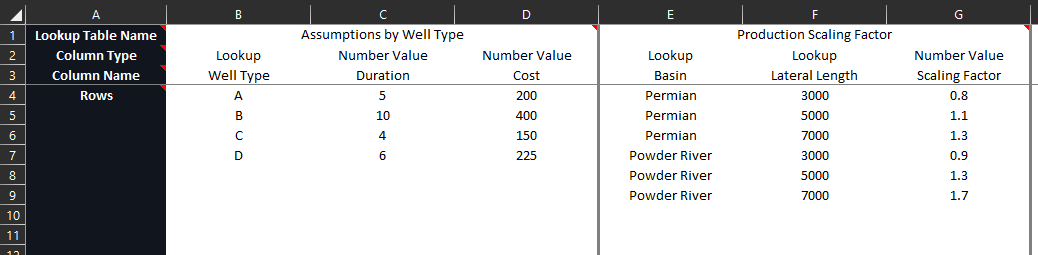
There are some comments in the template that explain how to use it, but generally it matches what you'd see in the Planner lookup table editor.
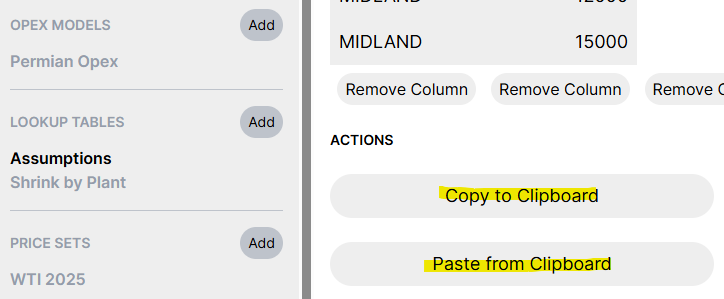
If you already have tables set up and you need to make bulk changes, you can copy a lookup table to your clipboard and paste it back in, so you can quickly make bulk updates in Excel.