
Working with a Schedule | Drag & Drop Tools
Basic Inputs
Inventory: a list of wells, facilities, etc. that need to be scheduled and considered for capital & production forecasts
Asset template(s): templates define sets of activities, groupings and resource types required for asset development
Resources: constrained resources such as rigs and frac crews set the pace, ensuring plans are realistic. Mobilization time can be applied here
Priority: uses an attribute to set a preferred order. This can be an economic metric such as NVP, a date, or a generic list of values
Scheduling Tools
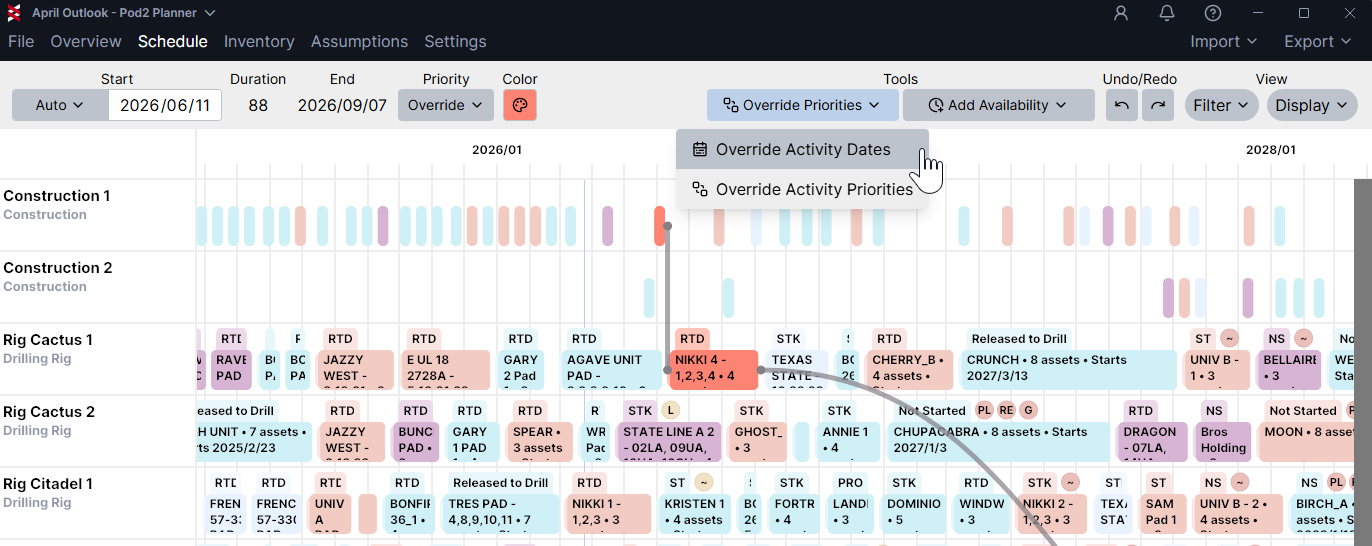
Drag & drop tools: Override Activity Dates vs Override Activity Priorities
TLDR
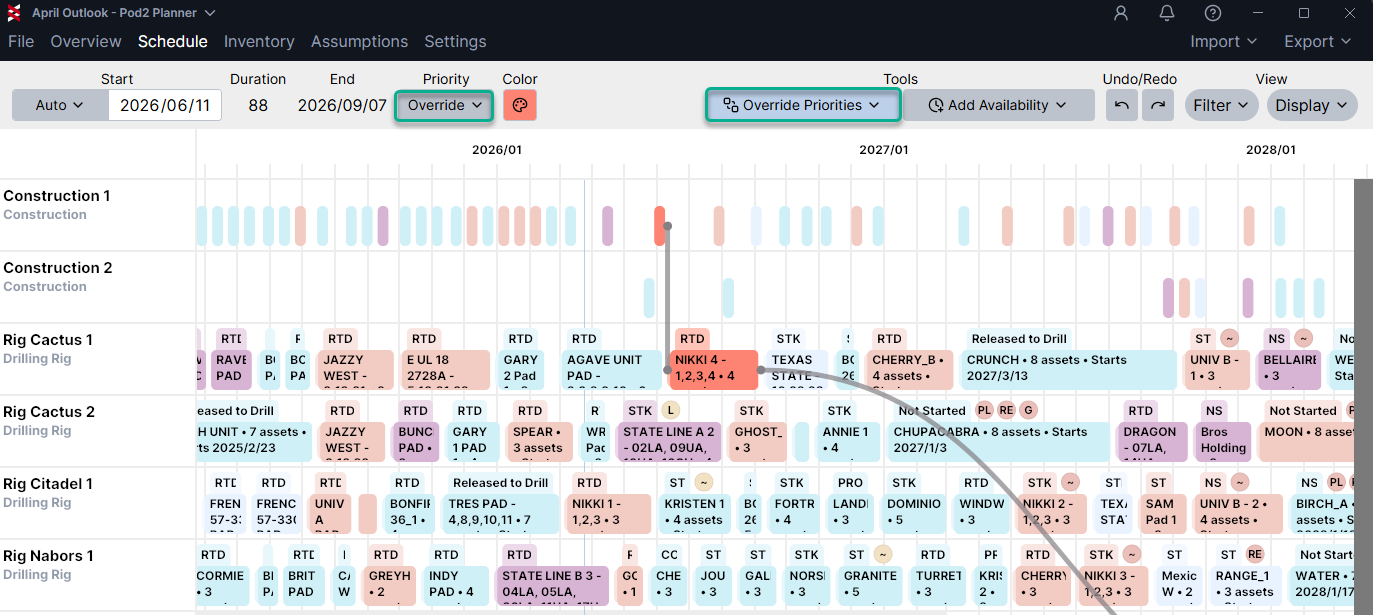
Override Activity Priorities: overrides the schedule priority. Use to reorder assets without causing gaps or overlapping activities
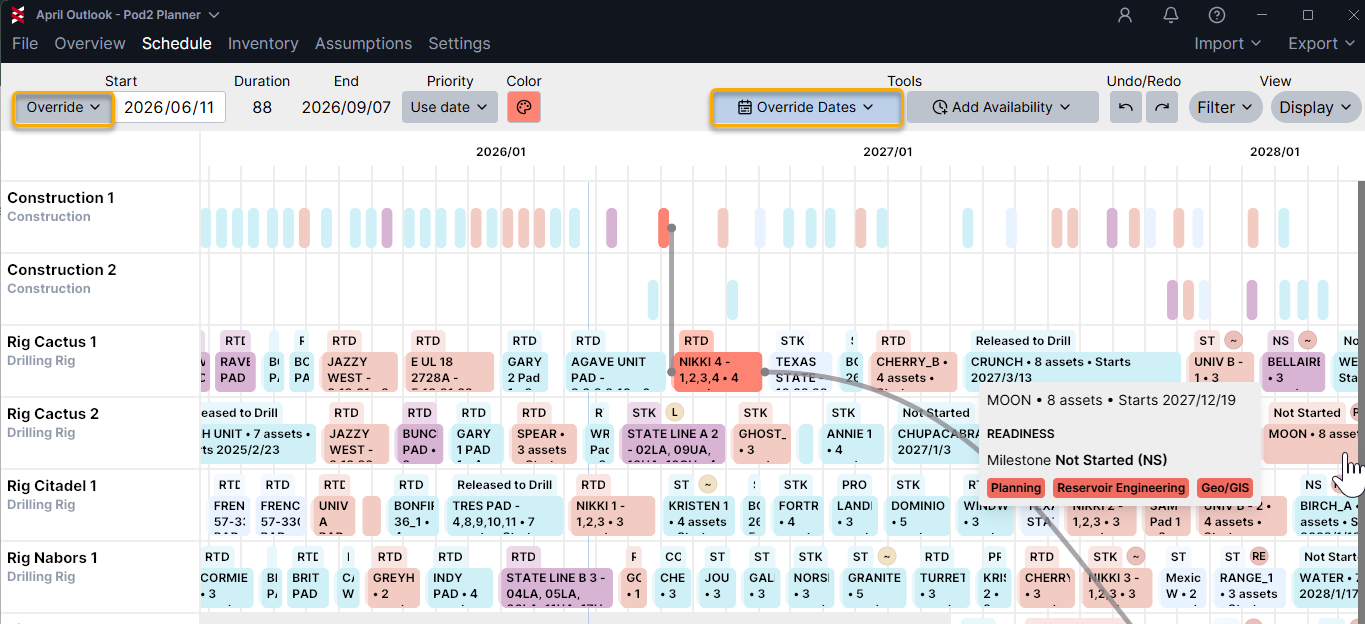
Override Activity Dates: overrides the schedule start date. Use to hard-code asset dates. Will allow overlapping activities and gaps
Further Explanation
Initially, assets are auto-scheduled based on the assumptions summarized above (inventory, templates, resources & priority)
A duration can be modified from it’s default, and the input will be tracked as an override (relative order and assigned resources will remain flexible)
Manually changing the assigned resource on an activity will also be tracked as an override
-
When dragging and dropping, there are two tools to choose from that will dictate an activity start date:
Override Activity Priorities: used to rearrange the relative order of activities while still honoring resource constraints and rules
Override Activity Dates: used to hard code specific start dates, violating other constraints if desired
Assets can be converted back to auto mode at any time, and the auto logic will take back over, dictating the order and resource
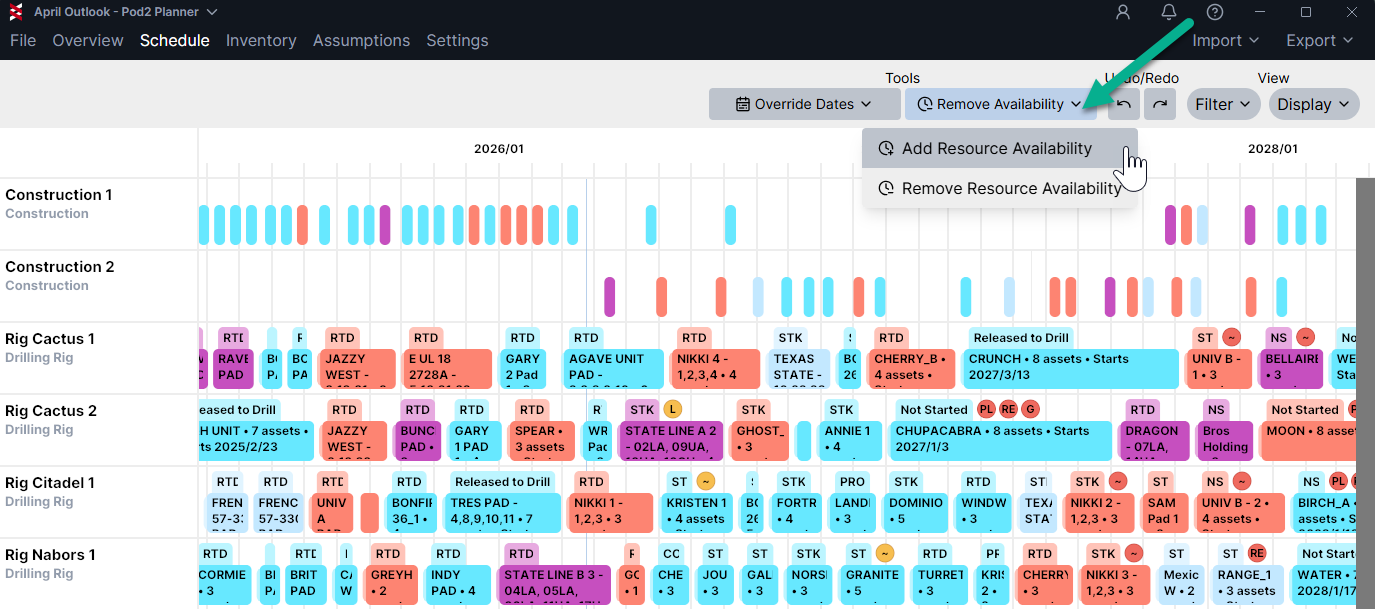
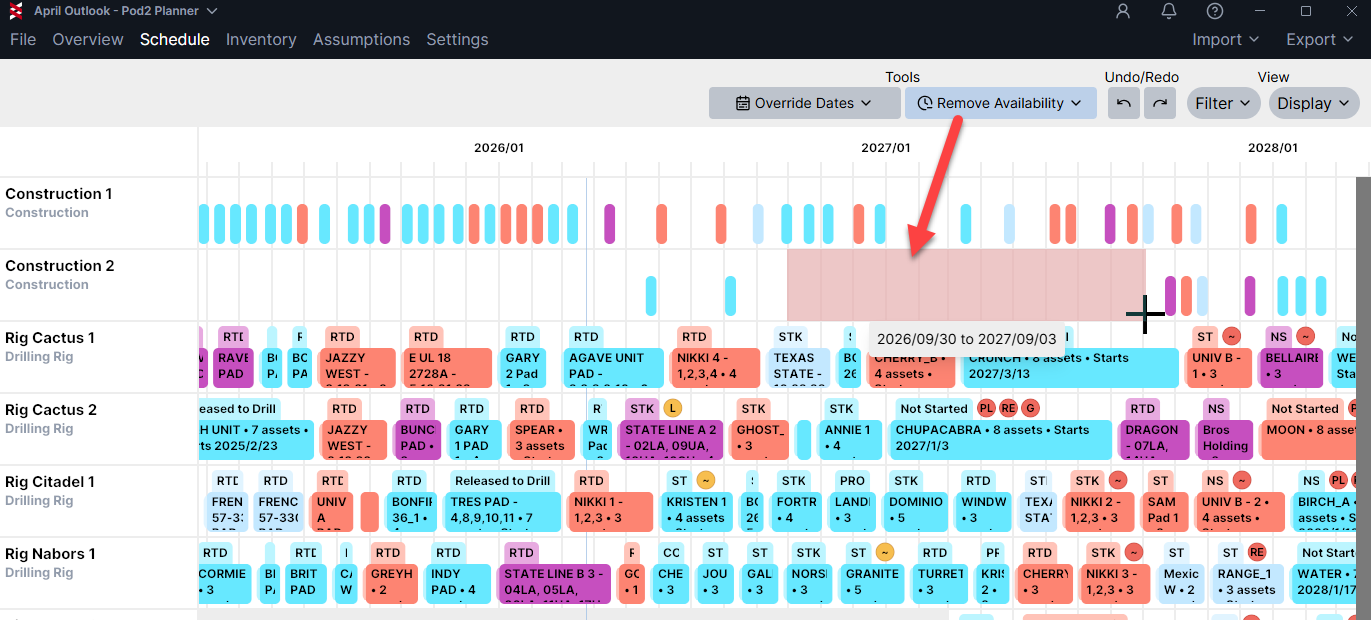
Resource Availability Tool: add or remove resource availability
When you select "Add Resource Availability" or "Remove Resource Availability", you can click and drag on the resource to change the availability:
The Planner will display a green rectangle to preview the availability period you're adding, or a red rectangle when you're removing availability.
Tips & Recommended Practice
Only activities that require resources will be visible from the Gantt (and they can be hidden if needed)
Use Ctrl + G to see grouped assets in the Gantt chart
Type an open bracket [ to expose attributes for calculated fields
Avoid dragging and dropping "just in time" activities like pad construction. Most use cases work best when rearranging driving steps like drill or frac
When dragging & dropping, select the first asset in a group to keep the group together
-
There are two ways to split a group:
Update the applicable attribute to decouple (ex: to split a pad into two groups for frac, create an attribute for “frac group” and give different names to the appropriate inventory wells)
Manually grab assets in the middle of the group to separate them (their attributes and original assumptions will remain intact, and if they are converted back to auto model, the group will be scheduled together again)